
Adding a candidate manually
Sometimes you need to add a candidate yourself rather than waiting for them to apply. Maybe someone handed you a CV at a meetup, or a colleague forwarded you a LinkedIn profile. Here is how to add them to Kabuna.
From a job’s pipeline view
- Open the job you want to add the candidate to.
- Click Add Candidate in the top-right corner of the pipeline view.
- Fill in the candidate’s details:
- Name (required)
- Email (required)
- Phone (optional)
- Attach a CV or resume if you have one. Kabuna accepts PDF, DOC, and DOCX files.
- Select which stage to place the candidate in. They default to the first stage in the pipeline.
- Click Save.
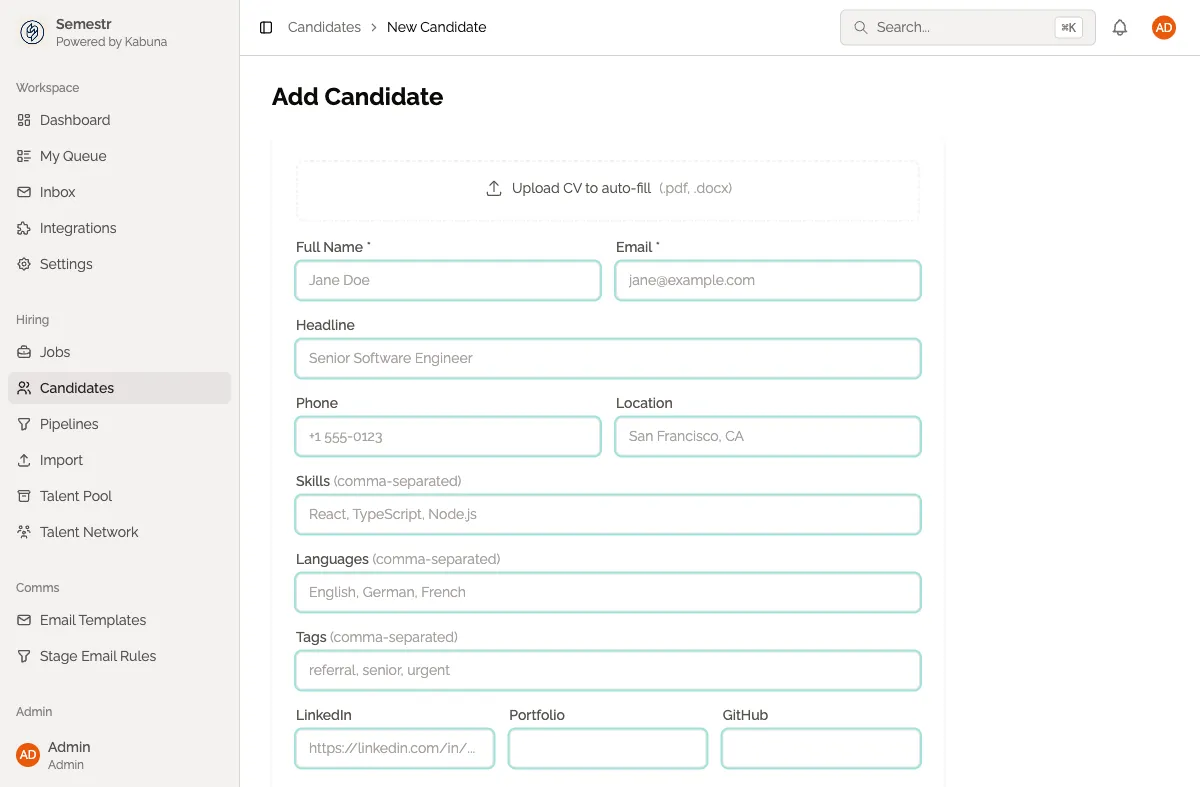
From the global Candidates page
You can also add candidates without tying them to a specific job first.
- Go to Candidates in the main navigation.
- Click Add Candidate.
- Fill in their details the same way as above.
- Optionally select a job and stage to assign them to right away.
- Click Save.
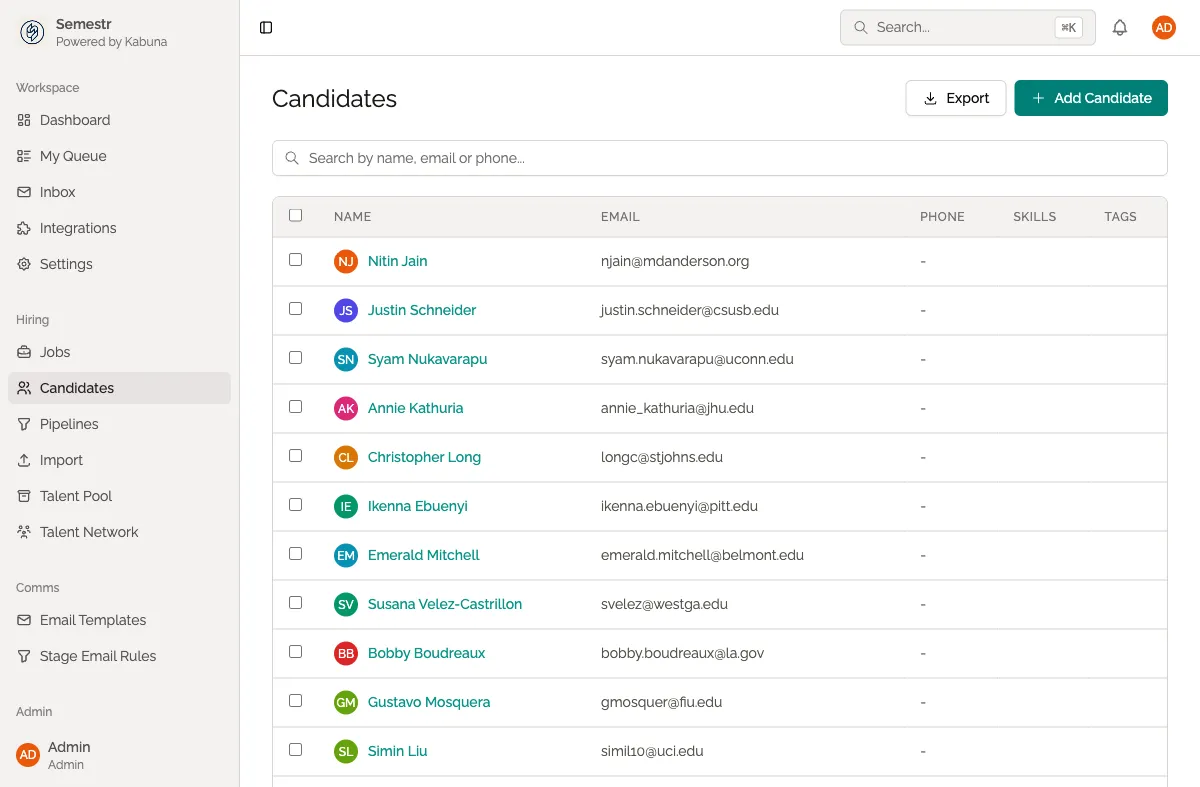
The candidate will appear in your candidate list immediately. If you assigned them to a job, they will show up on that job’s pipeline too.
What happens next
- Kabuna checks for duplicates based on email address. If a candidate with the same email already exists, you will be prompted to merge or update the existing record.
- The candidate’s profile is created with a full activity timeline so you can track everything from this point forward.
Related
- Need to add many candidates at once? See Importing candidates via CSV.
- Learn how to move candidates through the pipeline once they are added.