
Adding tags
Tags let you label candidates with useful information that does not fit neatly into other fields. Use them to mark skills, sources, hiring signals, or anything else that helps your team filter and find candidates.
Adding a tag to a candidate
- Open the candidate’s profile.
- Click the Tags area (below the candidate’s basic details).
- Start typing to search for an existing tag or create a new one.
- Select the tag from the dropdown, or press Enter to create it.
- The tag is added immediately.
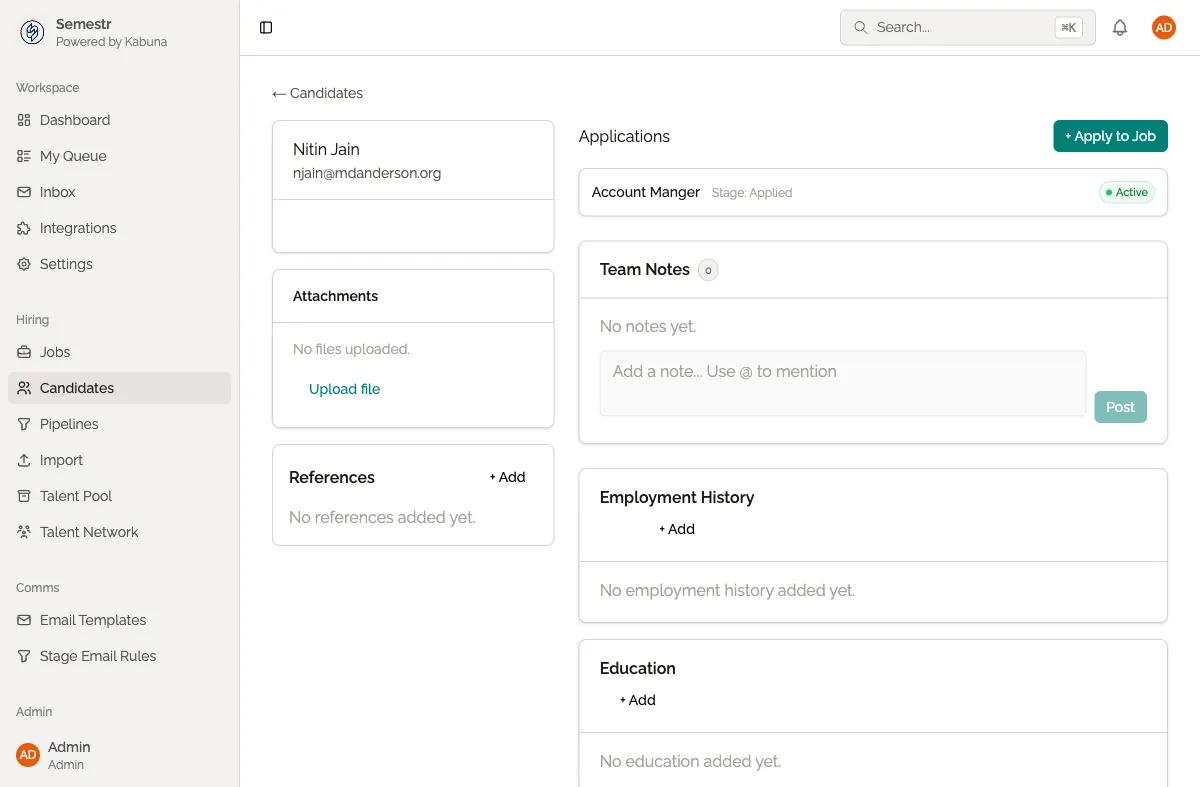
You can add as many tags as you need to a single candidate.
Removing a tag
To remove a tag, click the X next to the tag name on the candidate’s profile.
Tags are shared across your organisation
When you create a tag, it becomes available to everyone on your team. This keeps your tagging consistent. If a colleague has already created a “referral” tag, you will see it in the suggestions when you start typing.
Ideas for tags
Here are some common ways teams use tags:
- Source — “referral”, “careers-page”, “linkedin”, “meetup”
- Skills — “react”, “python”, “devops”, “product-design”
- Signals — “strong-yes”, “maybe-later”, “culture-add”
- Campaigns — “q1-hiring-push”, “grad-program-2026”
Filtering candidates by tag
Tags are most useful when you need to find candidates later.
- Go to the Candidates page in the main navigation.
- Use the Tag filter to select one or more tags.
- The list updates to show only candidates with those tags.
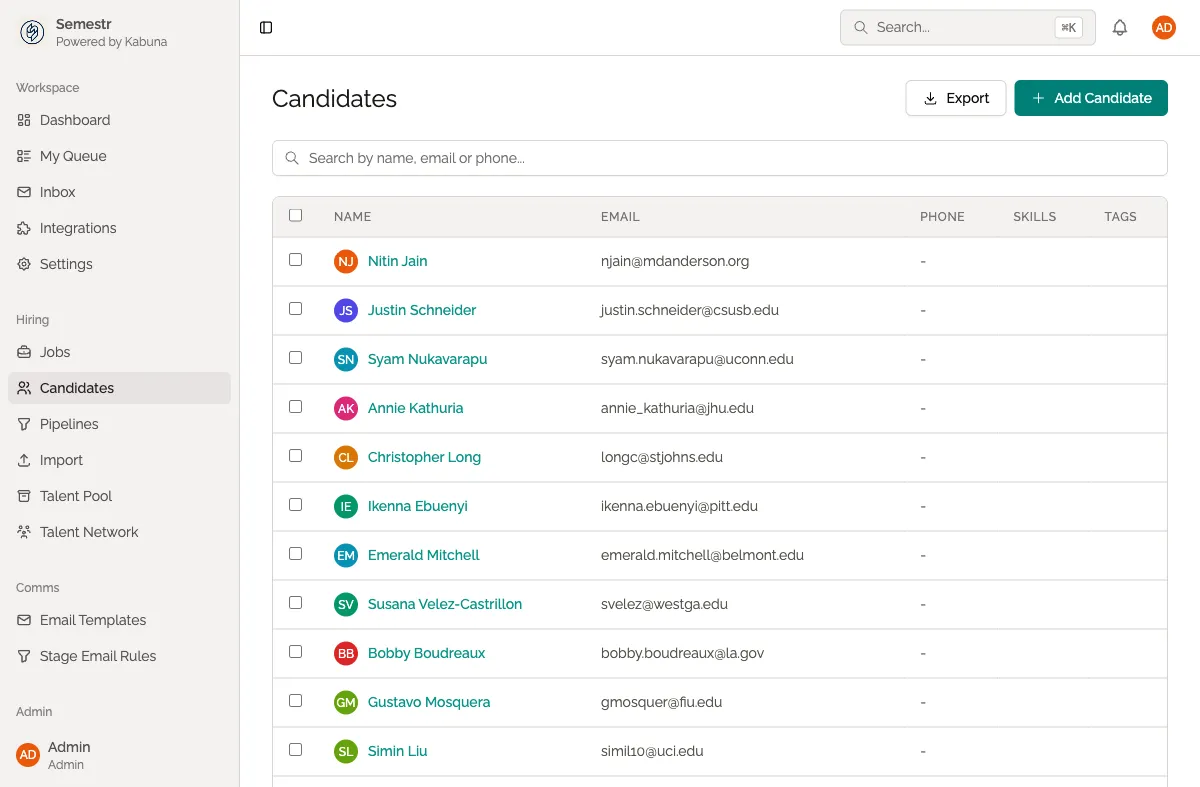
You can combine tag filters with other filters like job, stage, or date to narrow down your results further.
Related
- See how tags appear in a candidate’s activity history.
- Learn about adding candidates manually and tagging them at the same time.