
Importing candidates via CSV
If you have a list of candidates in a spreadsheet, you can import them all at once instead of adding them one by one.
Preparing your CSV file
Your CSV file should include columns for candidate information. At a minimum you need:
- Name (required)
- Email (required)
You can also include columns for:
- Phone number
- Current company
- Current title
- Tags
- Any other candidate fields you use in Kabuna
Save your spreadsheet as a CSV file before uploading.
Importing the file
- Go to Candidates in the main navigation.
- Click Import in the top-right corner.
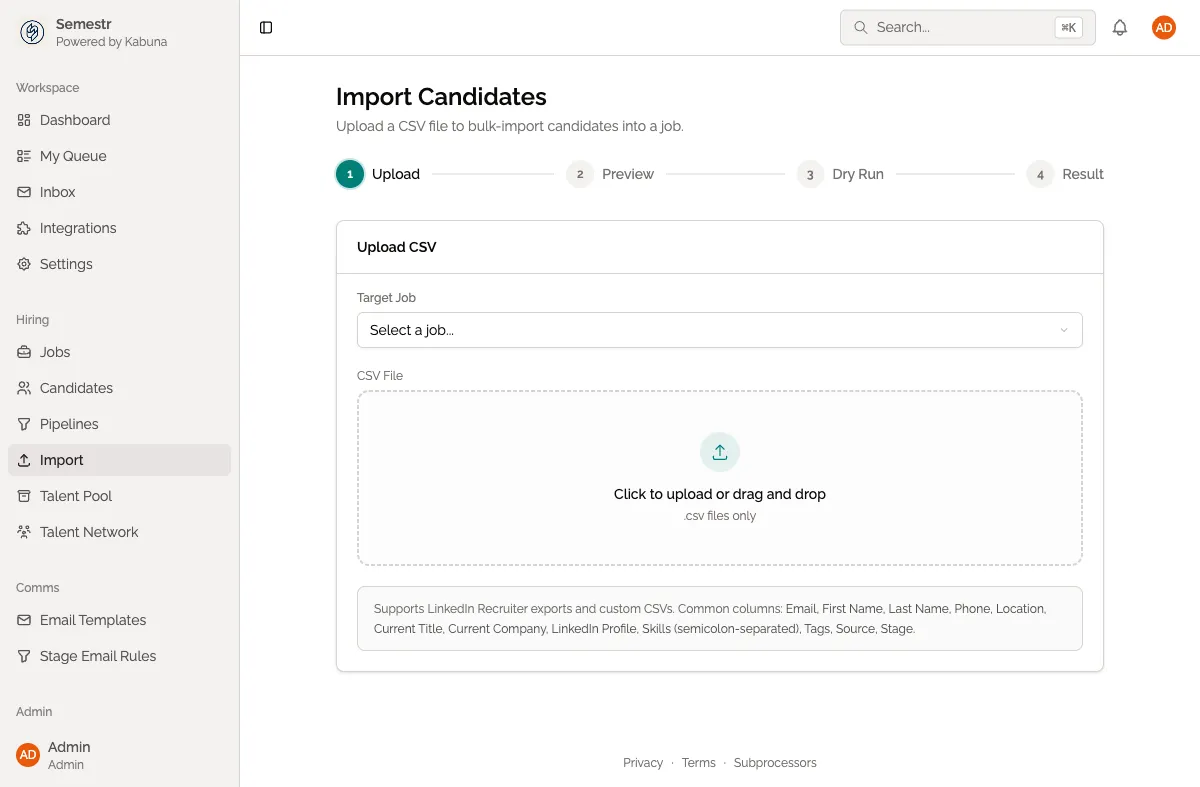
- Upload your CSV file by dragging it into the upload area or clicking to browse.
- Map your columns to Kabuna fields. Kabuna will try to auto-match columns based on their headers, but you can adjust the mapping manually.
- Choose which job and stage to import the candidates into. You can also import them without assigning a job.
- Review the preview to make sure everything looks right. The preview shows the first few rows so you can spot any issues.
- Click Confirm Import.
Duplicate detection
Kabuna detects duplicates by email address. If a candidate in your CSV already exists in Kabuna, they will be flagged in the preview. You can choose to skip duplicates or update existing records with the new data.
After the import
Once the import finishes, you will see a summary showing how many candidates were added, how many were skipped as duplicates, and whether any rows had errors. You can download an error report if some rows failed.
Related
- To add a single candidate instead, see Adding a candidate manually.
- Once imported, learn how to move candidates through the pipeline.