
Viewing candidate history
Every action taken on a candidate in Kabuna is logged in their activity timeline. This gives you a complete picture of where a candidate has been and what has happened along the way.
Opening the activity timeline
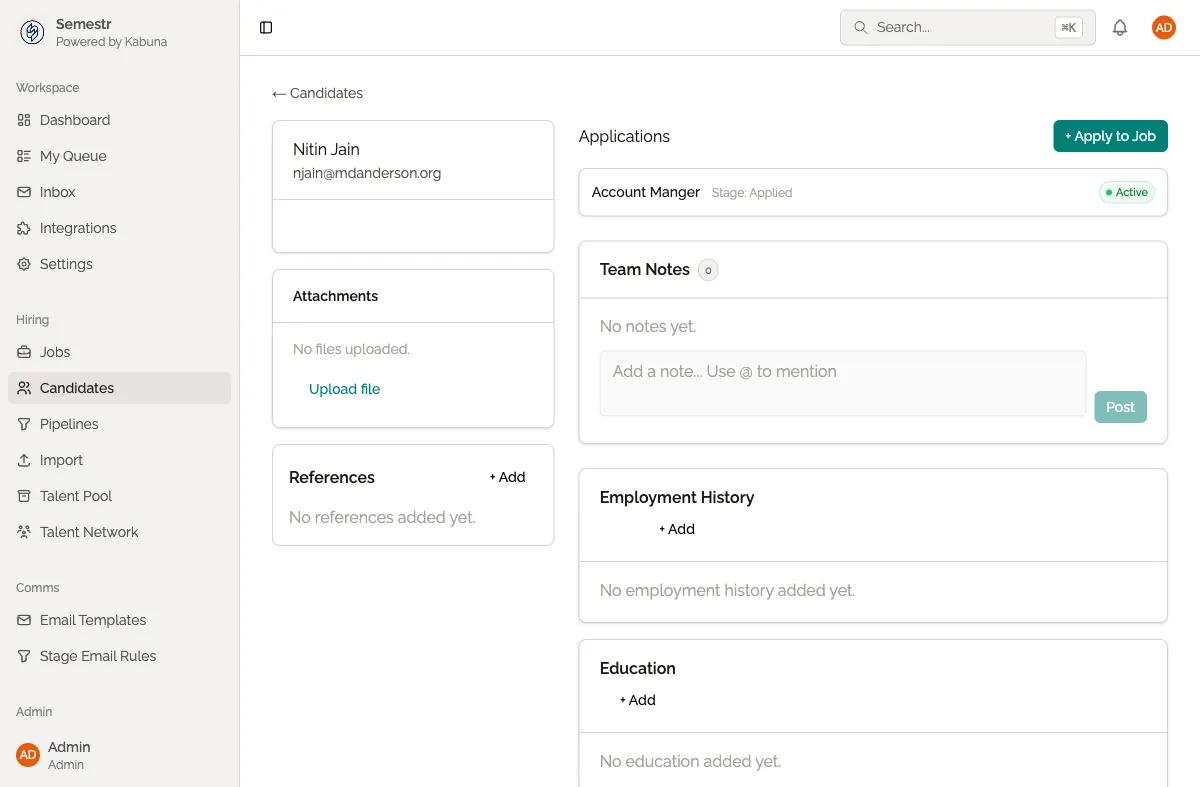
- Open a candidate’s profile by clicking their name anywhere in Kabuna.
- Scroll down to the Activity section.
The timeline shows everything in chronological order, with the most recent activity at the top.
What gets tracked
The timeline includes:
- Stage changes — when the candidate was moved between pipeline stages, and by whom.
- Emails sent and received — the full content of emails exchanged with the candidate.
- Comments — notes left by your team members.
- Scorecards and feedback — interview evaluations submitted by your team.
- File uploads — CVs, cover letters, or other documents added to the profile.
- Tags added or removed — changes to the candidate’s tags.
- Rejection and restoration — when a candidate was rejected or brought back into the pipeline.
Filtering the timeline
If the timeline is long, you can filter it to show only specific types of activity. Use the filter buttons above the timeline to toggle activity types on and off.
For example, you might filter to show only comments when you want to catch up on your team’s discussion about a candidate, or only stage changes to see how quickly someone moved through the process.
Related
- Learn about leaving comments and notes on candidate profiles.
- See how scorecards and interview feedback appear in the timeline.
- Understand how moving a candidate through the pipeline creates timeline entries.