
Leaving comments
Comments are the main way your team communicates about a candidate inside Kabuna. Every comment is tied to a candidate profile and visible to all team members who have access.
How to leave a comment
- Open the candidate’s profile.
- Scroll down to the comment box at the bottom of the activity feed.
- Type your comment.
- Press Enter or click Send.
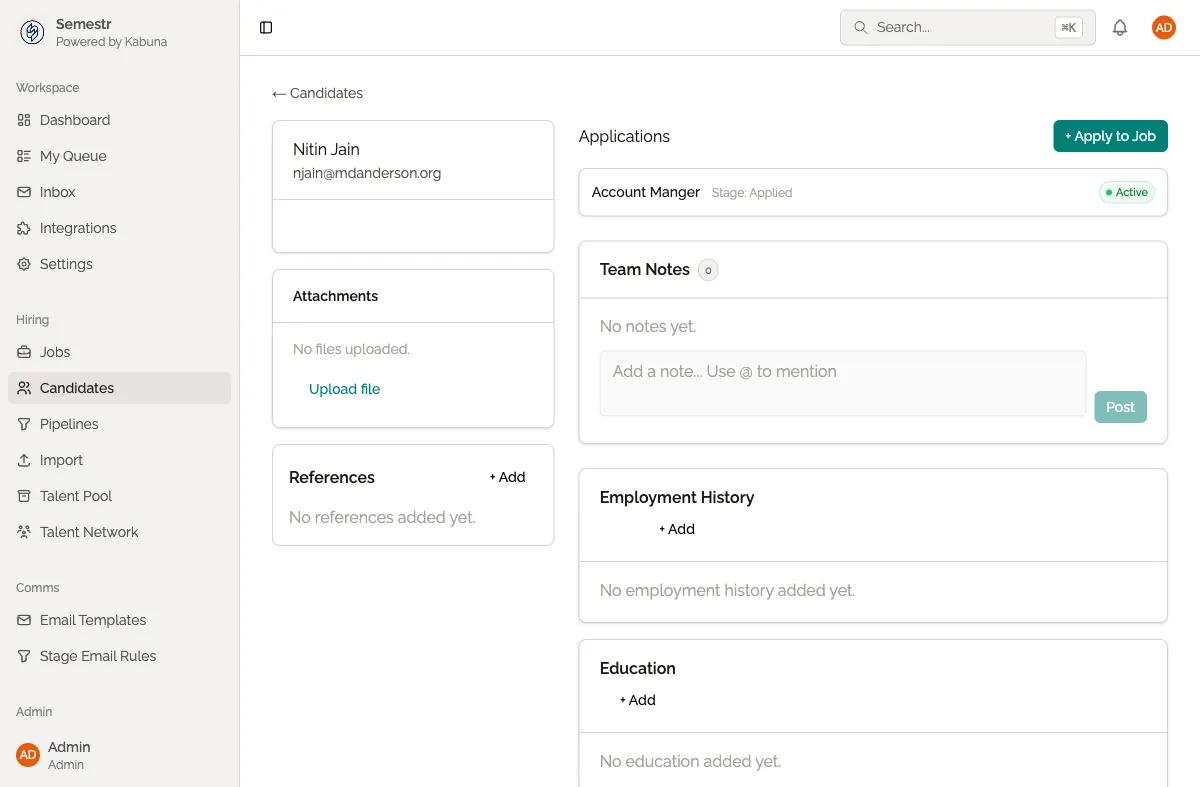
Your comment appears immediately in the candidate’s activity feed, in chronological order alongside other events like stage changes and emails.
What to use comments for
- Share notes from a phone screen or call.
- Flag a concern about a candidate’s availability or fit.
- Ask a teammate a question (use an @mention to make sure they see it).
- Record context that doesn’t belong in a scorecard, like salary expectations or start date preferences.
Who can see comments
All team members with access to the candidate can see every comment. There are no private comments. If you need to share something sensitive, reach out to the person directly outside of Kabuna.
Editing and deleting comments
You can edit or delete your own comments. Hover over your comment and click the three-dot menu to see your options.
Next steps
- Learn how to mention teammates in your comments to notify them directly.