
Mentioning teammates
When you need someone’s attention on a candidate, @mention them in a comment. They will get a notification and can jump straight to the conversation.
How to @mention someone
- Open a candidate’s profile and go to the comment box.
- Type @ followed by the first few letters of your teammate’s name.
- Select the person from the dropdown that appears.
- Finish writing your comment and press Enter or click Send.
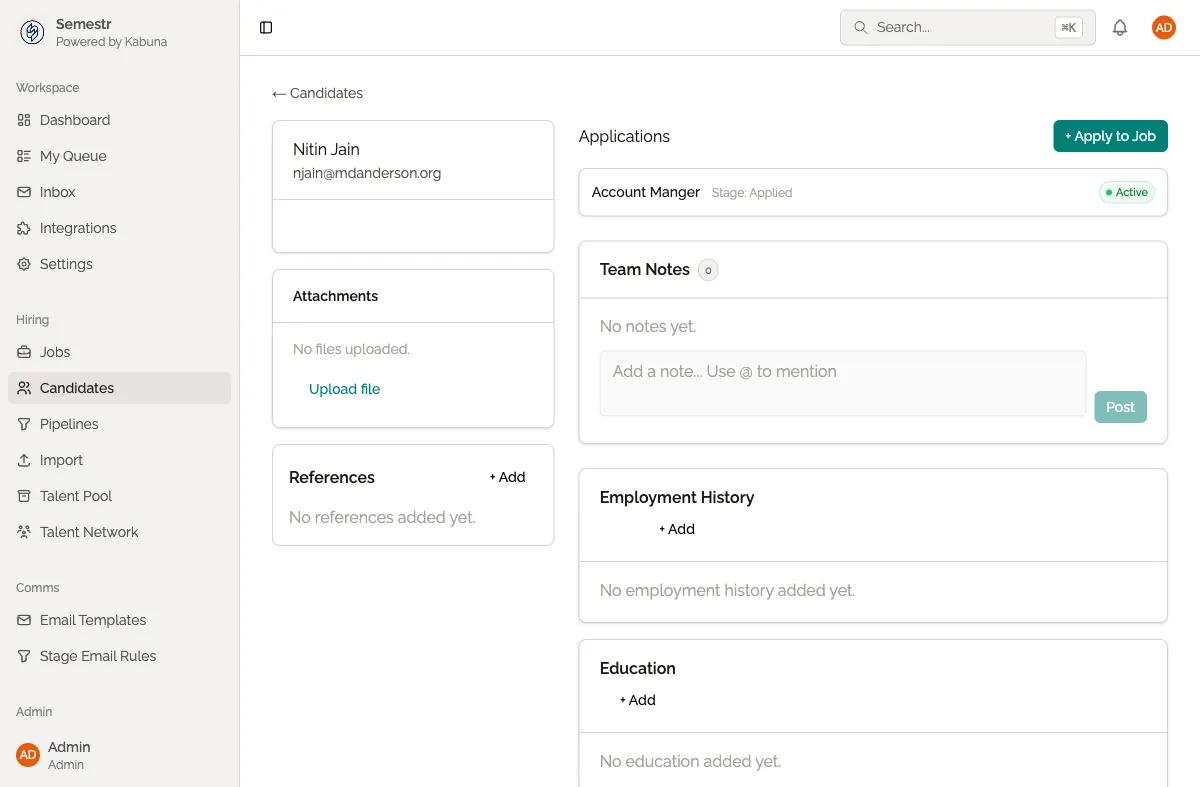
The mentioned person receives a notification with a link to the candidate profile and your comment.
When to use @mentions
- Ask for feedback. Mention the interviewer after a call: “@Sarah, how did the technical screen go?”
- Loop someone in. Bring a hiring manager into the conversation: “@Mike, take a look at this candidate for the senior role.”
- Flag something for review. Draw attention to a concern: “@Lisa, the candidate mentioned a competing offer with a Friday deadline.”
- Hand off a candidate. Let a teammate know they are taking over: “@James, assigning this one to you for the next round.”
Mentioning multiple people
You can mention as many people as you need in a single comment. Each person mentioned receives their own notification.
Managing your notifications
If you are getting too many mention notifications, or want to make sure you never miss one, you can adjust your notification settings. See notification preferences for details.
Related
- Leaving comments — the basics of commenting on candidate profiles.