
Reacting to feedback
Sometimes you want to acknowledge a comment or scorecard without writing a full reply. Reactions let you do that with a single click.
How to add a reaction
- Hover over a comment or scorecard entry on the candidate’s profile.
- Click the reaction icon that appears.
- Choose from the available emoji reactions.
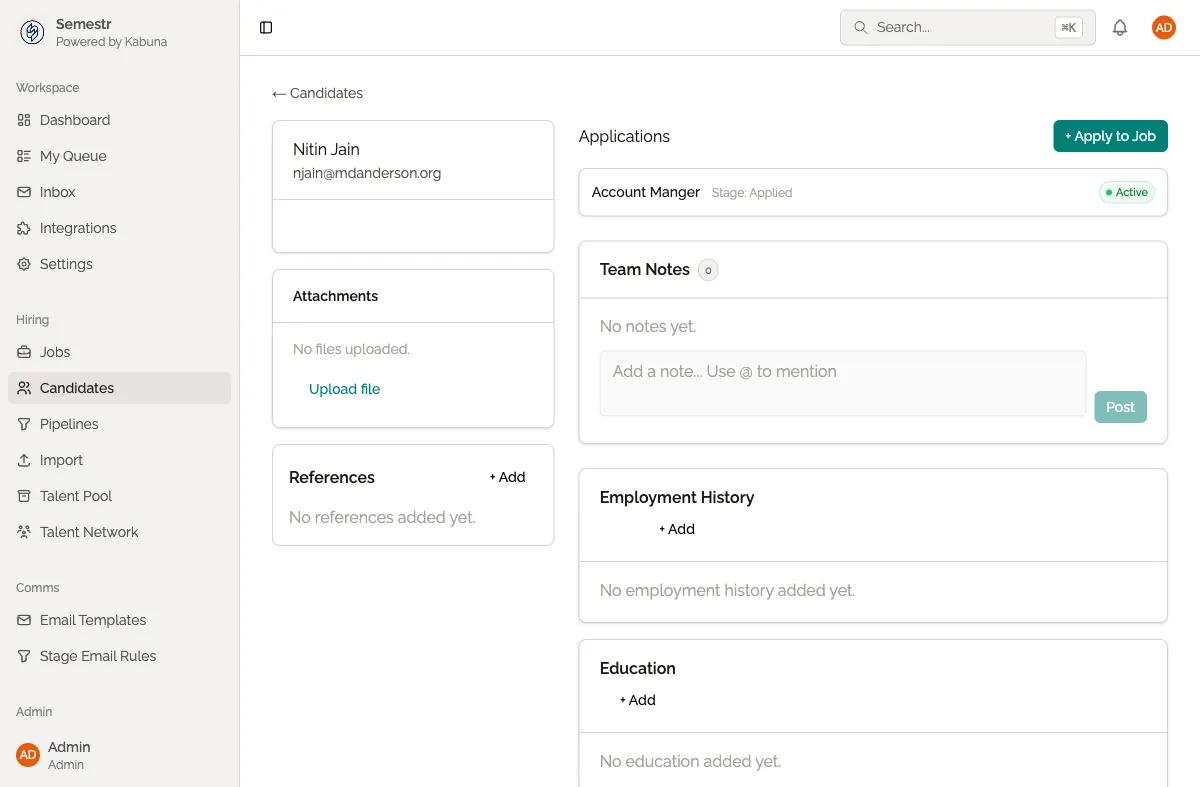
Your reaction appears below the comment or scorecard. All team members can see who reacted and which reaction they chose.
Removing a reaction
Click your reaction again to remove it. It disappears immediately.
When to use reactions
- Acknowledge feedback. A thumbs-up on a scorecard lets the interviewer know you have read it, without cluttering the feed with “thanks” comments.
- Show agreement. If someone raises a concern in a comment and you share it, a reaction signals that quickly.
- Keep the feed clean. Reactions reduce noise. Instead of five people commenting “agreed,” five reaction icons do the same job in less space.
Reactions vs. comments
Use reactions when a simple acknowledgment is enough. Use a comment when you need to add context, ask a follow-up question, or share new information.
Related
- Leaving comments — for when you need to say more than a reaction can convey.
- Scorecards and interview feedback — the structured feedback that reactions are often used on.