
Scorecards and interview feedback
Scorecards give your team a consistent way to evaluate candidates after interviews. Instead of freeform notes scattered across emails and messages, everyone uses the same criteria and rating scale.
How to submit a scorecard
- Open the candidate’s profile.
- Click Add Scorecard.
- Rate the candidate on each predefined criterion using the rating scale.
- Add written notes to explain your ratings.
- Choose an overall recommendation: Strong Yes, Yes, No, or Strong No.
- Click Submit.
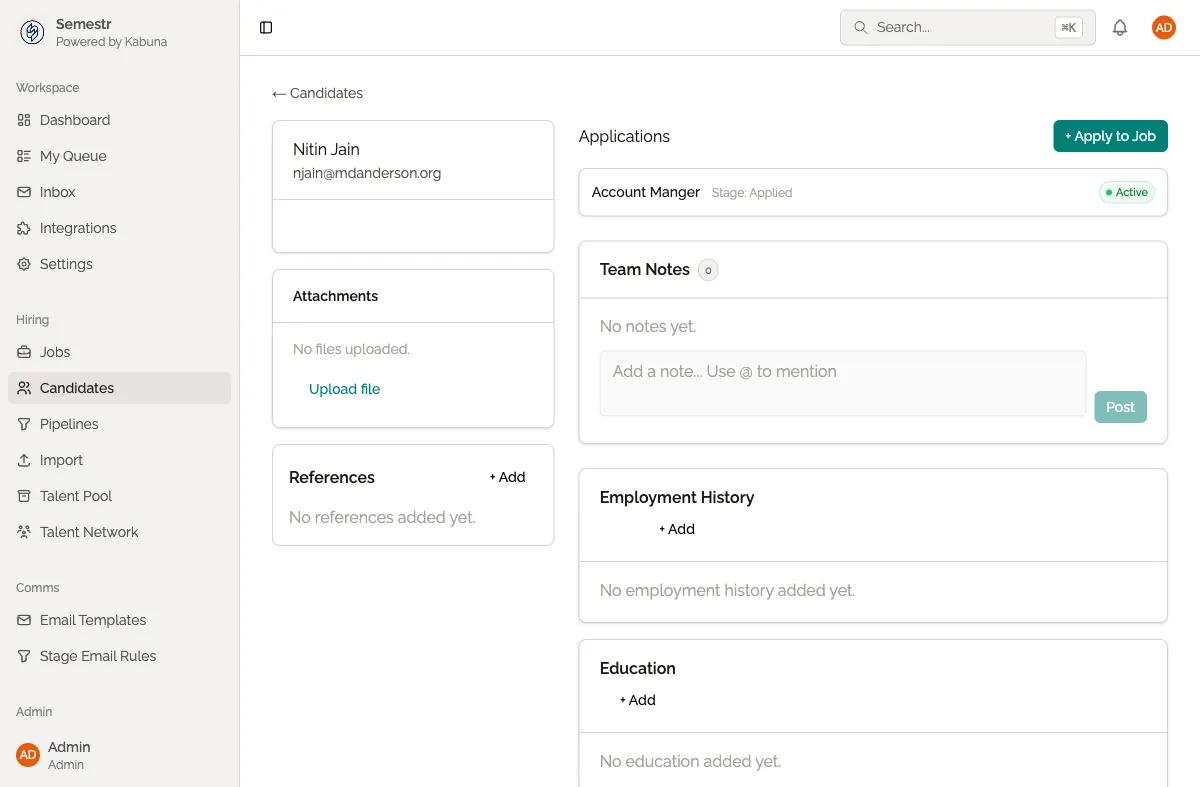
Your scorecard is now visible to the rest of the hiring team on the candidate’s profile.
Multiple scorecards per candidate
Each interviewer submits their own scorecard. If three people interview a candidate, there will be three separate scorecards on the profile. This gives the hiring team a complete picture of how different interviewers assessed the candidate.
Configuring scorecard criteria
Scorecard criteria are set up per job. The hiring manager or admin defines what interviewers should evaluate — for example, “Technical Skills,” “Communication,” or “Culture Fit.” This keeps feedback focused and comparable across candidates.
To configure criteria:
- Open the job.
- Go to the job’s settings.
- Edit the scorecard template.
- Add, remove, or reorder criteria as needed.
- Save your changes.
Viewing feedback as a hiring manager
Open the candidate’s profile and scroll to the scorecards section. You can see each interviewer’s ratings, notes, and overall recommendation at a glance. Use this to make informed decisions about whether to advance the candidate.
Reacting to feedback
You can quickly acknowledge a scorecard without writing a full comment. See reacting to feedback for details.
Related
- Leaving comments — for unstructured notes and discussion.
- Assigning candidate ownership — make sure someone is responsible for collecting feedback.