
Exporting candidate data
You can export your candidate data as a CSV or Excel file for reporting, external analysis, or migrating data to another tool. Filters let you narrow down exactly which candidates end up in the export.
Filtering candidates
The Candidates page has a filter bar directly below the search field. You can combine any of these filters and the table updates immediately:
- Tags — type one or more tags, comma-separated (e.g.
senior, remote). Matches candidates that have any of the listed tags. - Skills — type one or more skills, comma-separated (e.g.
React, Python). Matches candidates that have any of the listed skills. - Location — type one or more locations, comma-separated (e.g.
Berlin, London). Matches candidates whose location contains any of the terms. - Created date range — pick a from and/or to date to show only candidates added within that period.
Click Clear filters (the small x button that appears when any filter is active) to reset everything.
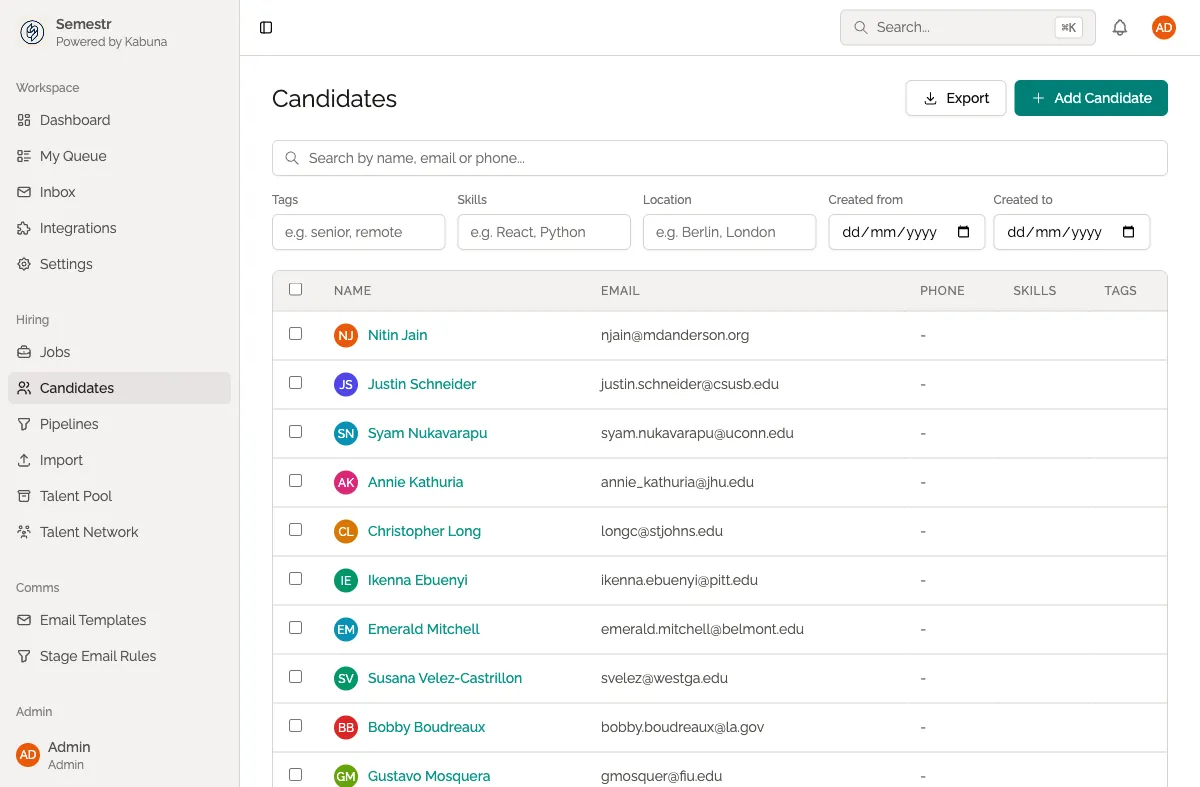
How to export candidates
- Go to Candidates in the main navigation.
- Optionally use the filters to narrow down the list — the export will only include the filtered results.
- Click Export in the top-right corner.
- Choose CSV or Excel as the format.
- Optionally check Include sensitive fields (Admin only) to add notes and salary expectations to the export.
- Click Export — the file downloads straight to your browser.
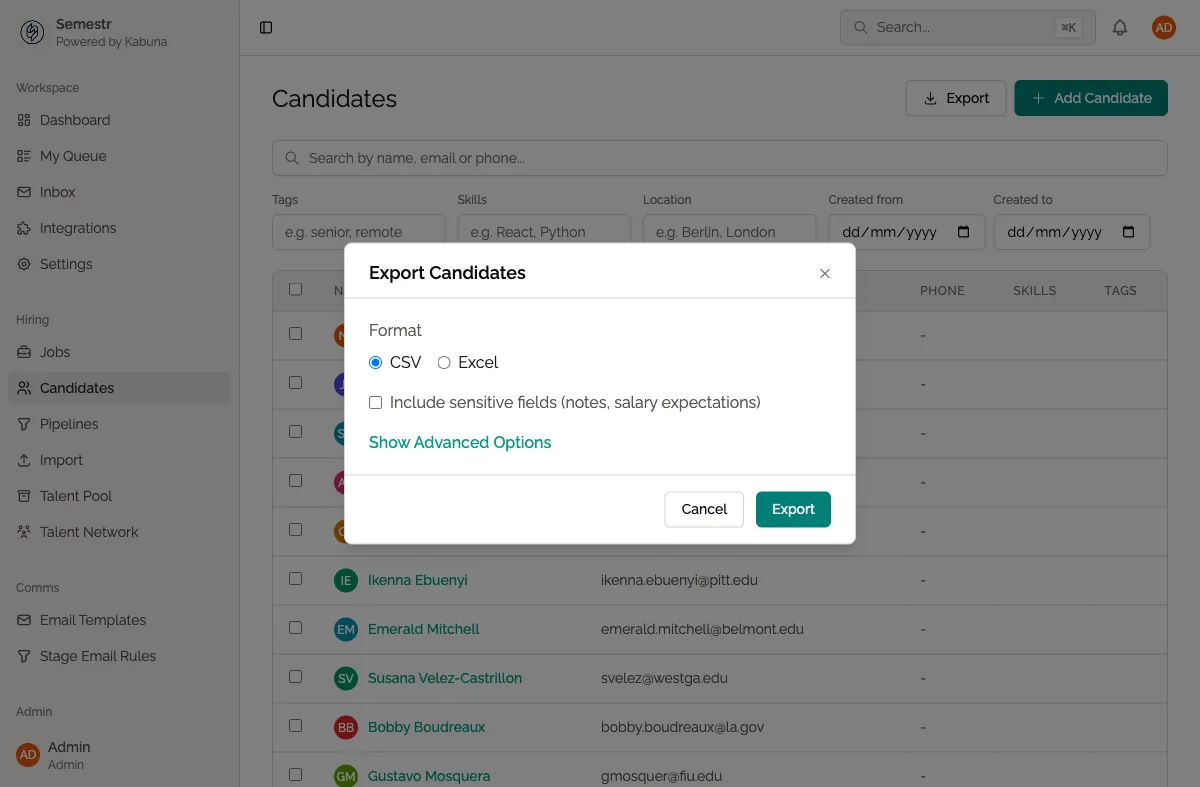
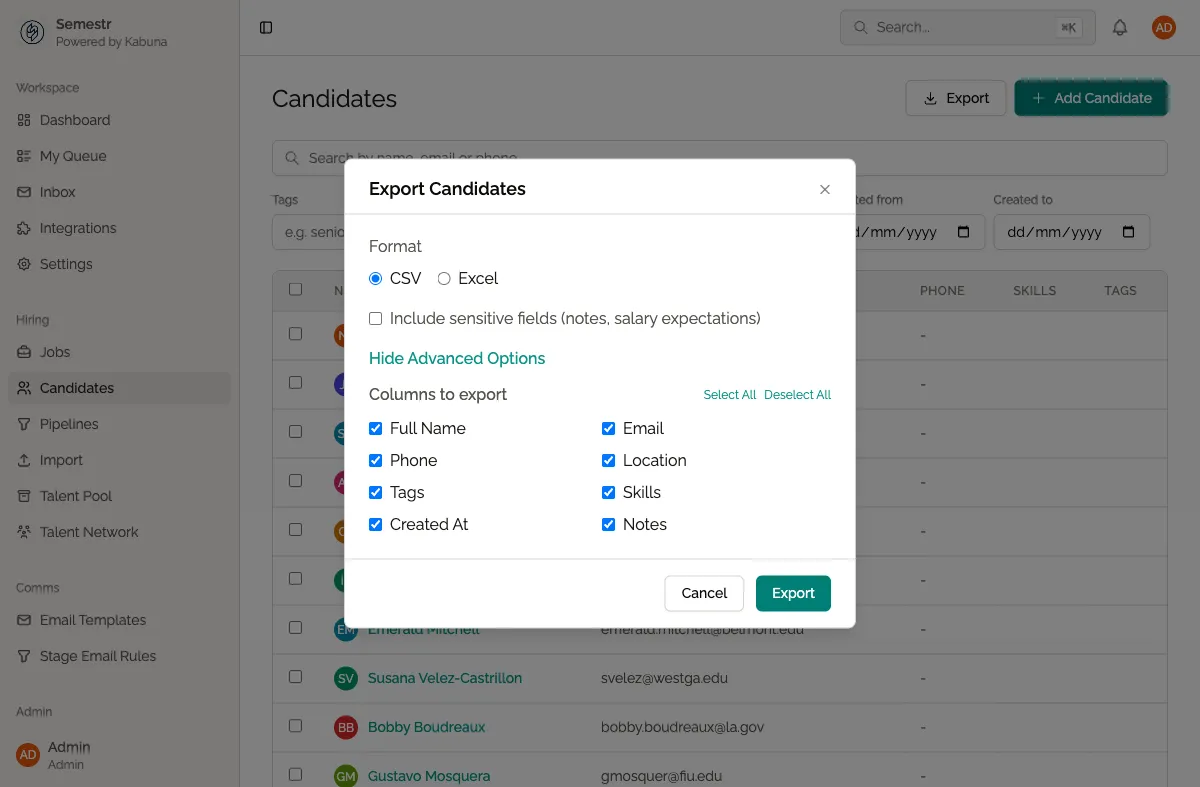
Choosing which columns to export
If you only need certain fields in your export file, click Show Advanced Options in the export modal. This reveals a list of all available columns with checkboxes:
- Full Name, Email, Phone, Location, Tags, Skills, Created At, Notes
- Use Select All / Deselect All to quickly toggle everything.
- At least one column must remain selected.
Only the checked columns will appear in the exported file.
What the export includes
By default the exported file contains the following fields for each candidate:
- Full Name
- Phone
- Location
- Tags
- Skills
- Created At
If you enable Include sensitive fields, the export also includes:
- Notes
Common uses
- Hiring reports — share candidate data with stakeholders who do not have Kabuna access.
- External analysis — pull data into your own spreadsheet or BI tool.
- Data migration — move candidate records to another system.
- Compliance records — keep a copy of candidate data for audit or GDPR documentation purposes.
Related
- To export pipeline-level data for a specific job, see Exporting job and pipeline reports.
- To look up what data Kabuna holds about a specific person, see GDPR: looking up a candidate.