
Exporting job and pipeline reports
You can export reports from two places in Kabuna: the Jobs list (all jobs at a glance) and the Pipeline view (all candidates for a specific job). Both support filters and column selection so you only export what you need.
Filtering jobs
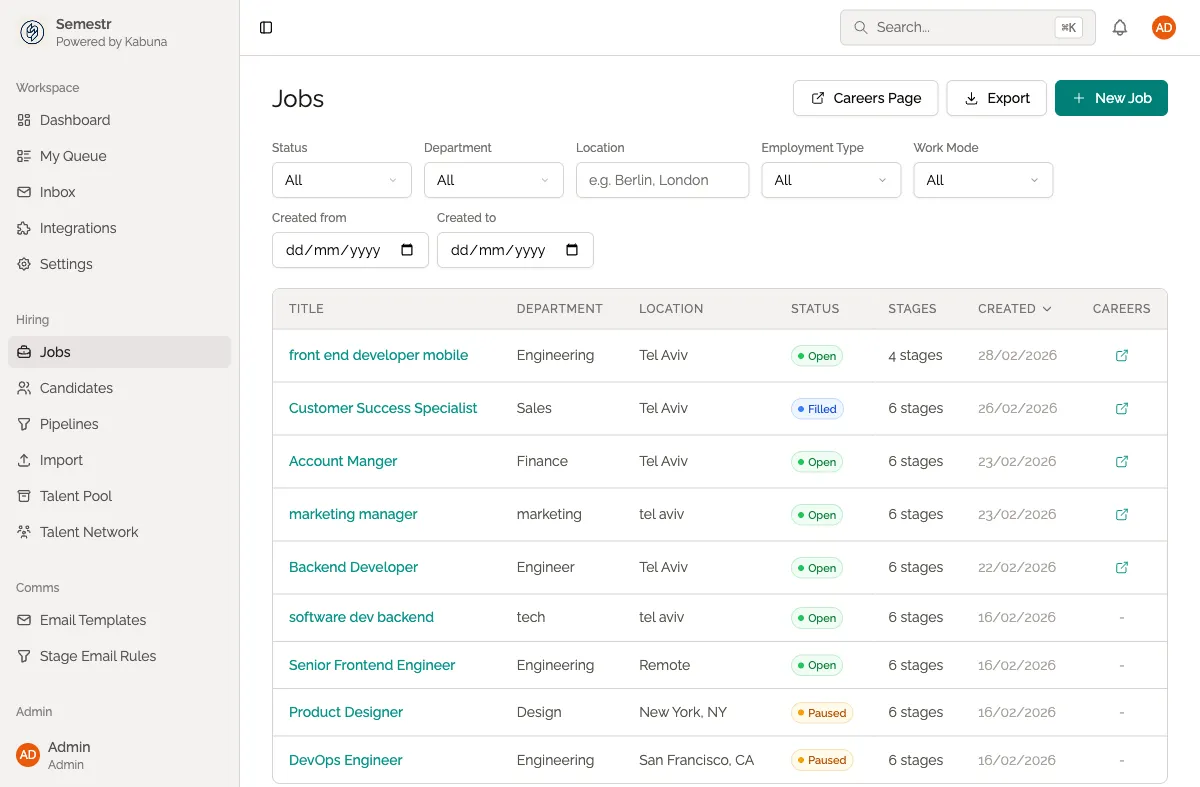
The Jobs page has a filter bar with the following controls:
- Status — select Open, Paused, Filled, or Closed.
- Department — select from departments that exist in your current jobs.
- Location — type one or more locations, comma-separated (e.g.
Berlin, London). - Employment Type — select Full-time, Part-time, Contract, Freelance, or Internship.
- Work Mode — select On-site, Remote, or Hybrid.
- Created date range — pick a from and/or to date.
The table updates immediately as you change any filter. Click Clear filters to reset.
How to export a jobs report
- Go to Jobs in the main navigation.
- Optionally apply filters to narrow down the list.
- Click Export in the top-right corner.
- Choose CSV or Excel as the format.
- Optionally click Show Advanced Options to choose which columns to include.
- Click Export — the file downloads to your browser.
The exported file contains one row per job, with fields like title, department, location, status, employment type, work mode, headcount, and created date.
Filtering pipeline candidates
When you open a specific job and go to its Pipeline view, you can filter the kanban board using:
- Status — Active, Hired, Rejected, or On Hold.
- Stage — any of the pipeline stages configured for this job.
- Source — where the candidate came from (e.g. careers page, LinkedIn, referral).
- Owner — the team member assigned to the candidate.
- Created date range — pick a from and/or to date.
The kanban columns update instantly to show only matching candidates.
How to export a pipeline report
- Open a job and go to its Pipeline view.
- Optionally apply filters.
- Click the Export dropdown in the top-right and choose:
- Export Applications — a flat CSV or Excel file with one row per candidate.
- Export Pipeline (Excel) — a multi-sheet Excel file with a Summary sheet and one sheet per stage.
- Optionally click Show Advanced Options to select which columns to include.
- Click Export.
Choosing which columns to export
Both the Jobs export and the Pipeline export support column selection. Click Show Advanced Options in the export modal to reveal checkboxes for each available column. Use Select All / Deselect All to quickly toggle everything.
For pipeline exports, the available columns are:
- Candidate Name, Candidate Email, Job Title, Stage, Status, Source, Owner, Created At
- Notes and Salary Expectation (when Include sensitive fields is checked — Admin only)
Common uses
- Hiring manager reporting — share a clear picture of where a search stands with the hiring manager or leadership.
- Team retrospectives — review how a hiring process went after a role is filled.
- Cross-job analysis — export all jobs to compare pipeline sizes, statuses, and timelines across departments.
- Time-to-hire analysis — use the date data to measure how long your hiring process takes.
Related
- To export candidate data across all jobs, see Exporting candidate data.
- To learn more about pipeline stages, see Setting up pipeline stages.