
Profile settings
Your profile settings control how you appear to your team and how Kabuna communicates with you.
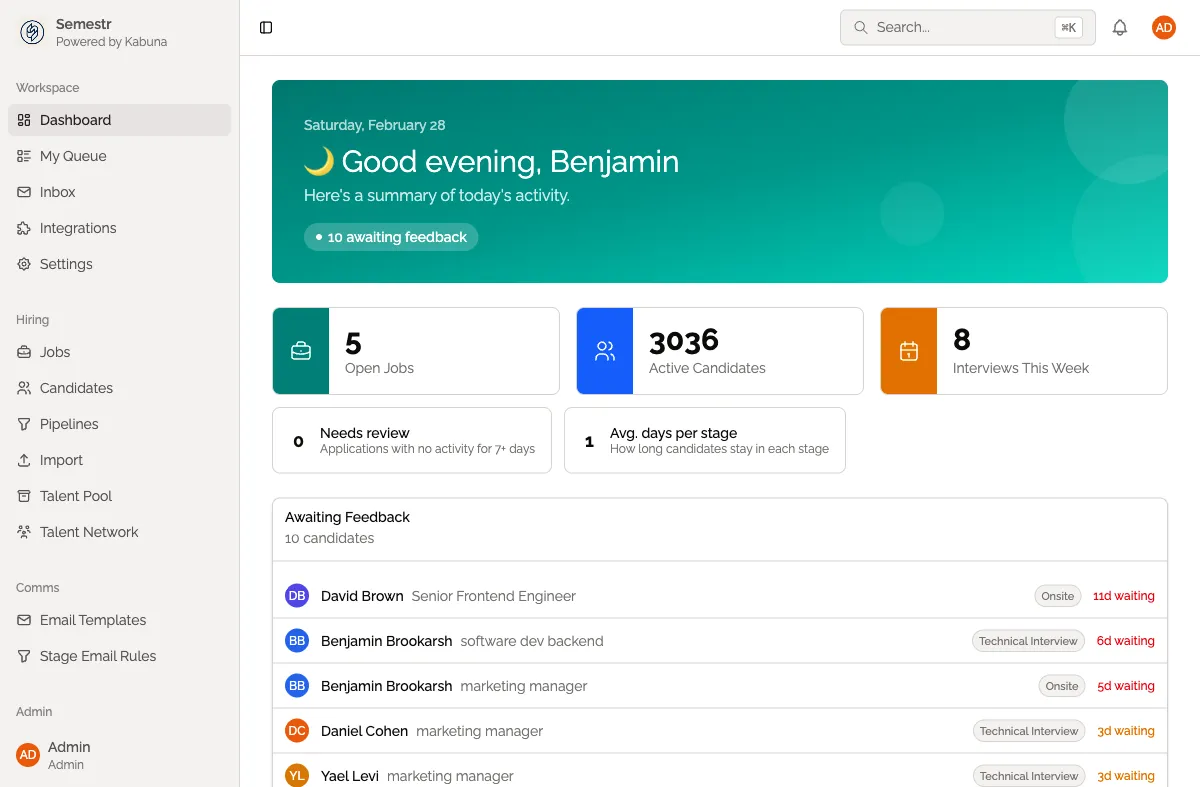
Accessing your profile
- Click your avatar in the top-right corner of the screen.
- Select Profile from the dropdown menu.
What you can update
Name and photo
Update your display name and upload a profile photo. Your name and photo are visible to other team members in your organisation.
Email signature
Set your email signature, which is appended to outgoing emails you send through Kabuna. This is useful for adding your title, phone number, or any other contact details.
Password and sign-in
- Change your password if you signed up with email and password.
- Manage your Google sign-in connection if you use Google to log in.
Notification preferences
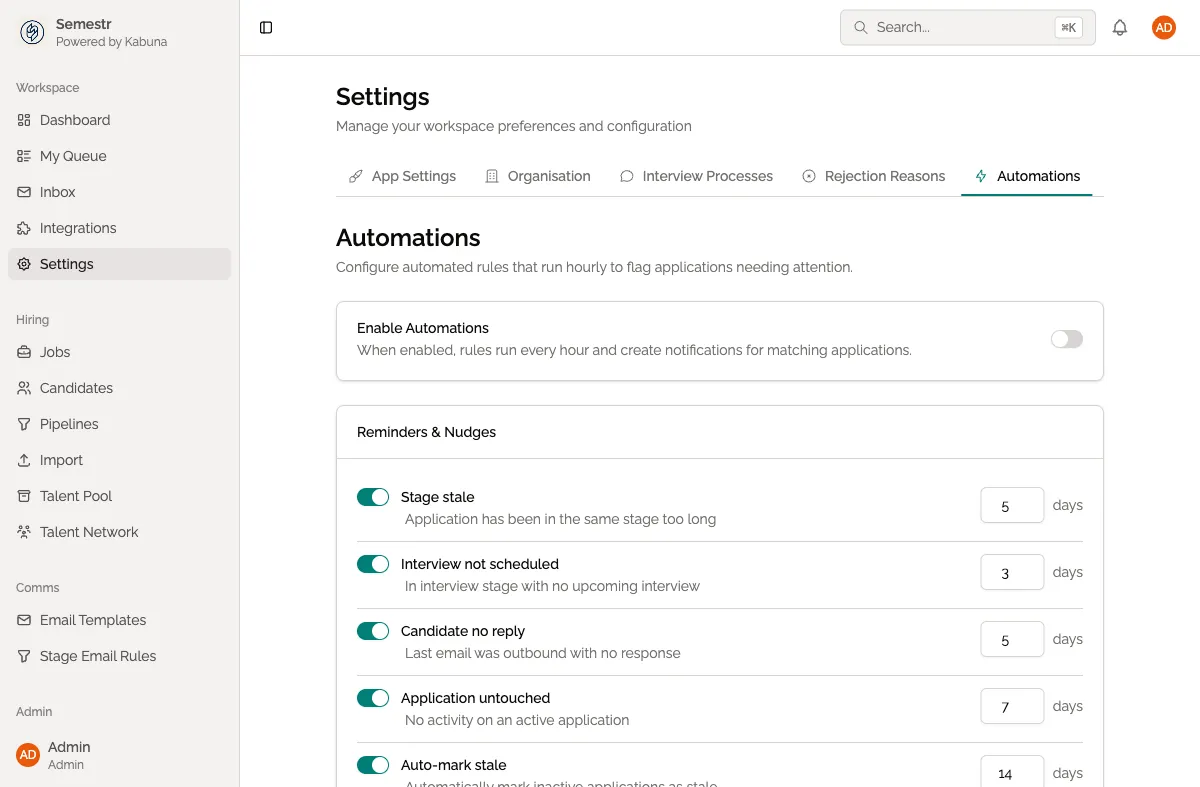
Control which notifications you receive and how you receive them. You can choose to be notified about new candidates, feedback submitted, interview reminders, and more.
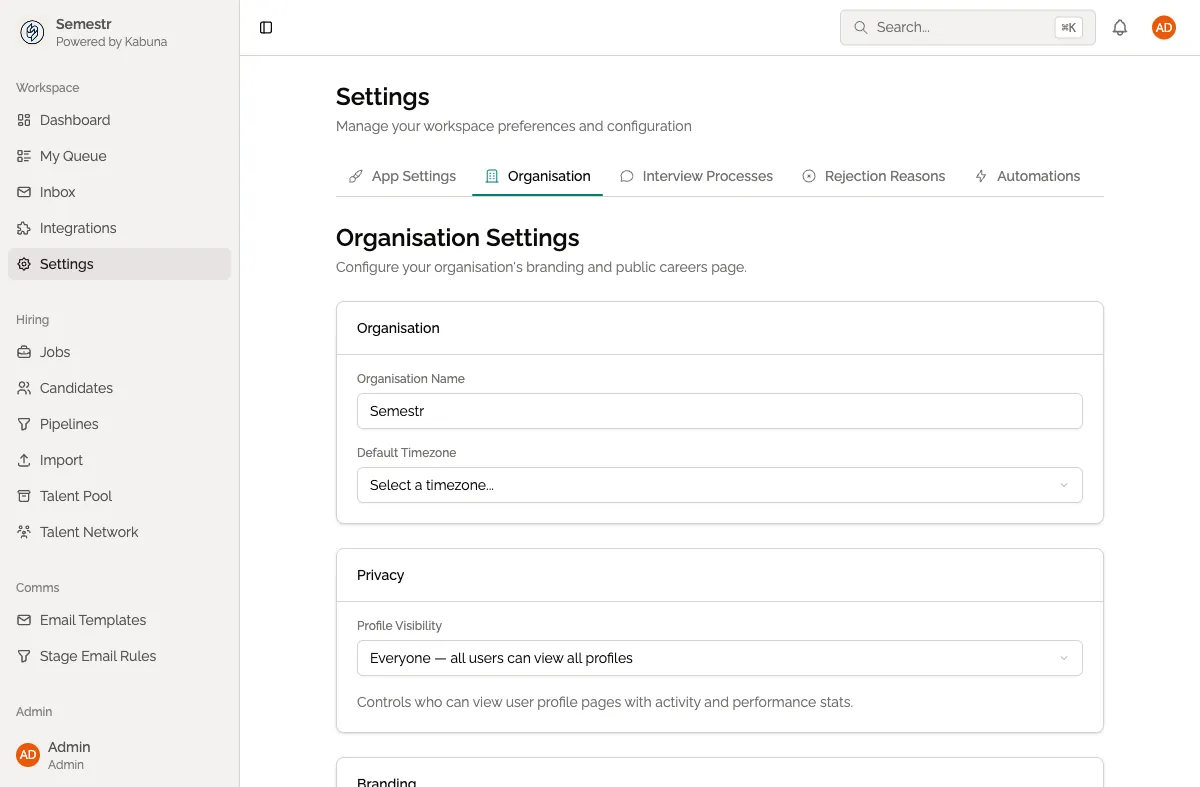
For a detailed breakdown of notification options, see Notification preferences.
Related pages
- Connecting your Google mailbox — link your Gmail account to send and receive emails directly in Kabuna.