
Available automation triggers
Automations let you set up “when X happens, do Y” rules so your team spends less time on repetitive tasks and more time actually evaluating candidates.
How automations work
Each automation has two parts:
- Trigger — the event that kicks things off.
- Action — what Kabuna does when the trigger fires.
You can combine any trigger with any action. For example: “When a candidate is moved to the Interview stage, send a Slack notification to the #hiring channel.”
Creating an automation
- Go to Settings > Integrations > Automations.
- Click New automation.
- Pick a trigger from the list.
- Pick an action.
- Configure the details (which job, which stage, which template, etc.).
- Click Save.
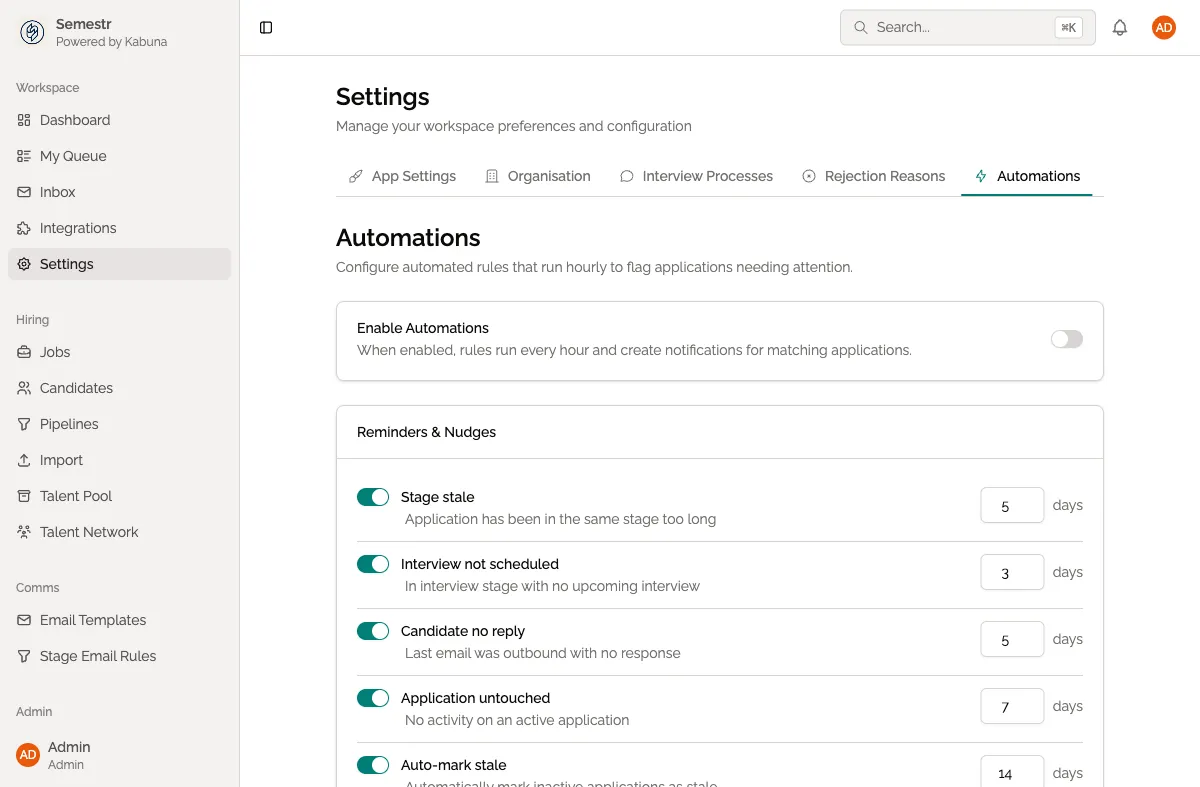
Available triggers
| Trigger | When it fires |
|---|---|
| Candidate added to job | A new candidate is added to a specific job, whether manually, via CSV import, or through a careers page application. |
| Candidate moved to stage | A candidate is moved to a particular pipeline stage (you pick which stage). |
| Candidate rejected | A candidate is marked as rejected on any job. |
| Email received | A new email from or about a candidate is logged in Kabuna. |
| Scorecard submitted | A team member submits a scorecard for a candidate. |
| Candidate tag added | A specific tag is added to a candidate’s profile. |
Available actions
| Action | What it does |
|---|---|
| Send email from template | Sends an email to the candidate using one of your saved email templates. |
| Send Slack notification | Posts a message to a connected Slack channel. Requires a Slack webhook. |
| Send Teams notification | Posts a message to a connected Microsoft Teams channel. Requires a Teams webhook. |
| Move candidate to stage | Automatically moves the candidate to a different pipeline stage. |
| Assign owner | Sets a specific team member as the candidate’s owner. |
Example automations
Here are a few common setups to get you started:
- Auto-acknowledge applications — Trigger: Candidate added to job. Action: Send email from your “Application received” template.
- Notify the team about new interviews — Trigger: Candidate moved to Interview stage. Action: Send Slack notification.
- Auto-assign sourced candidates — Trigger: Candidate tag “sourced” added. Action: Assign owner to your sourcing lead.
Editing and deleting automations
- Go to Settings > Integrations > Automations.
- Find the automation you want to change.
- Click on it to edit, or click the three-dot menu and select Delete.
Tips
- You can create multiple automations for the same trigger. For example, when a candidate is rejected you could both send a rejection email and post a Slack notification.
- Automations run instantly when the trigger fires. There is no delay.
- If an action fails (for example, a webhook URL is invalid), Kabuna will show an error in the automation’s history log.
Next steps
- Connect Slack or Teams if you haven’t set up your webhook yet.
- Set up email templates so your automations can send candidate emails.
- Go back to the Integrations overview for the full list of available connections.