
Connecting Slack and Teams
Kabuna can send real-time hiring notifications to a Slack or Microsoft Teams channel. Both integrations work through incoming webhooks, so you don’t need to install a full app or grant broad permissions.
Connecting Slack
Step 1 — Create an incoming webhook in Slack
- Open your Slack workspace in a browser.
- Go to https://api.slack.com/apps and click Create New App > From scratch.
- Name the app (for example, “Kabuna Notifications”) and pick the workspace you want to post to.
- In the left sidebar, click Incoming Webhooks and toggle it on.
- Click Add New Webhook to Workspace.
- Choose the channel where you want notifications to appear and click Allow.
- Copy the webhook URL that Slack gives you.
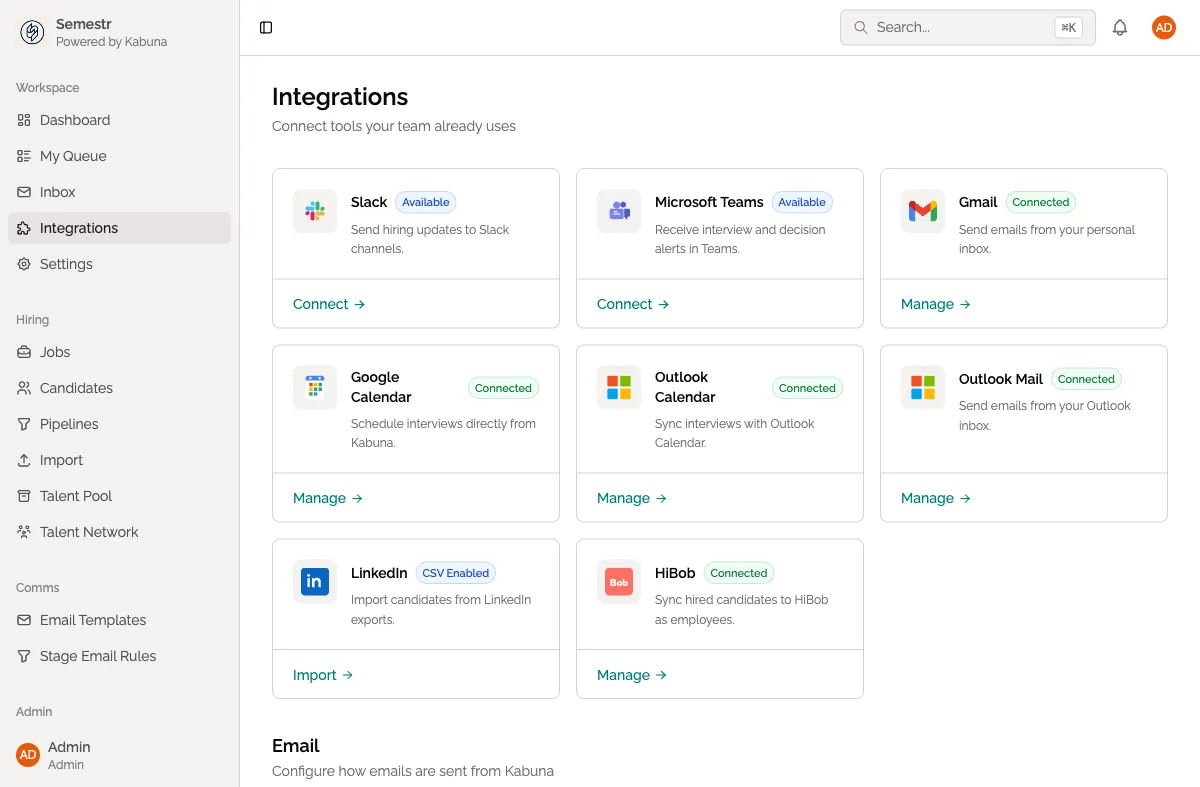
Step 2 — Add the webhook URL in Kabuna
- In Kabuna, go to Settings > Integrations > Slack.
- Paste the webhook URL into the Webhook URL field.
- Click Save.
Step 3 — Choose which events to send
- In the same Slack integration panel, you will see a list of events.
- Check the events you want to send to Slack, for example:
- New candidate added
- Candidate moved to a new stage
- Candidate rejected
- Scorecard submitted
- Click Save.
Connecting Microsoft Teams
Step 1 — Create an incoming webhook in Teams
- Open Microsoft Teams and go to the channel where you want notifications.
- Click the three-dot menu next to the channel name and select Connectors (or Manage channel > Connectors, depending on your Teams version).
- Find Incoming Webhook and click Configure.
- Give the webhook a name (for example, “Kabuna”) and click Create.
- Copy the webhook URL that Teams gives you.
Step 2 — Add the webhook URL in Kabuna
- In Kabuna, go to Settings > Integrations > Microsoft Teams.
- Paste the webhook URL into the Webhook URL field.
- Click Save.
Step 3 — Choose which events to send
- Check the events you want to forward to Teams (the same options listed above for Slack).
- Click Save.
Testing the connection
After saving, click the Send test notification button. You should see a test message appear in your Slack or Teams channel within a few seconds. If it doesn’t arrive, double-check that the webhook URL is correct and that the channel still exists.
Troubleshooting
| Problem | What to check |
|---|---|
| Notifications stopped arriving | The webhook URL may have been revoked or the channel deleted. Re-create the webhook and update the URL in Kabuna. |
| Notifications are going to the wrong channel | You probably pasted the webhook URL from a different channel. Create a new webhook for the correct channel and update Kabuna. |
| ”Invalid webhook URL” error in Kabuna | Make sure you copied the full URL, including the https:// prefix. |
Next steps
- See Available automation triggers for the full list of events you can use in notifications and automations.
- Go back to the Integrations overview to explore other connections.