
Managing users and roles
Your team is at the heart of your hiring process. The Users page gives you a clear view of everyone in your organisation, their roles, and lets you invite new people or make changes as your team evolves.
Viewing your team
- Go to Settings > Users.
- You will see a list of all current team members, along with their email addresses and roles.
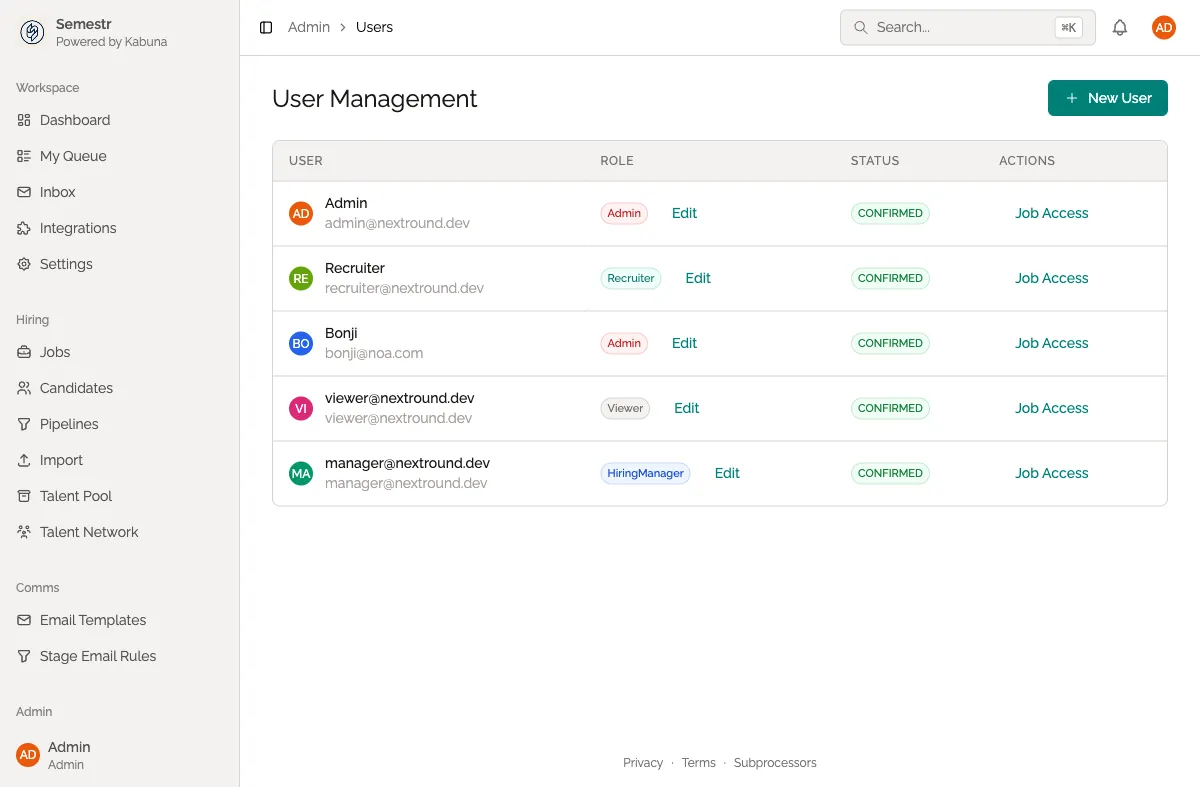
Inviting a new team member
- Go to Settings > Users.
- Click Invite user.
- Enter the person’s email address.
- Choose a role: Admin or Member.
- Click Send invite.
The person will receive an email with a link to sign up and join your organisation. For a walkthrough of your first invites, see Inviting your team.
Roles explained
Kabuna has two roles:
| Role | What they can do |
|---|---|
| Admin | Full access to everything — jobs, candidates, organisation settings, billing, and user management. Admins always have visibility across all jobs and candidates, regardless of visibility settings. |
| Member | Can view and manage jobs and candidates, leave comments and scorecards, and send emails. Cannot change organisation settings, billing, or manage other users. |
Changing someone’s role
- Go to Settings > Users.
- Find the person in the list.
- Click the Edit button next to their name.
- Select the new role and confirm.
The change takes effect immediately. If you promote a Member to Admin, they will gain access to all settings and billing pages straight away.
Removing a team member
- Go to Settings > Users.
- Find the person you want to remove.
- Click the Remove button and confirm.
Removing someone revokes their access to your organisation. Their past comments, scorecards, and activity history are kept for audit purposes.
Tips
- Every organisation needs at least one Admin. You cannot remove or downgrade the last Admin.
- You do not need to wait for someone to accept their invite before assigning them to a job’s hiring team.
- If someone leaves the company, remove them promptly to keep your data secure.
Related
- Inviting your team — a getting-started guide for your first invites.
- Visibility settings — control whether Members can see all jobs or only the ones they are part of.