
Notification preferences
Kabuna keeps you in the loop when things happen with your candidates and jobs. If you are getting too many notifications, or not enough, you can fine-tune exactly what you hear about and how.
Where to find notification settings
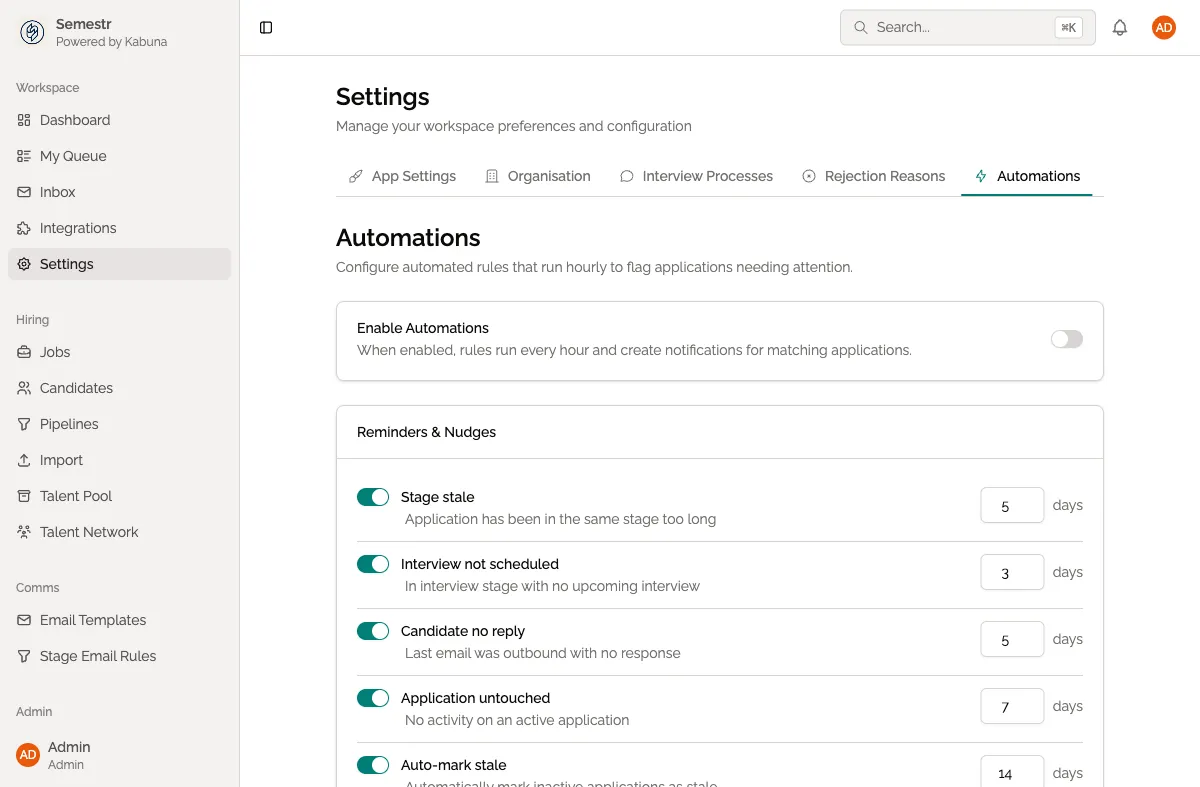
- Go to Settings > Notifications (or click your profile avatar and select Notifications).
What you can control
You can toggle notifications on or off for each of the following:
| Notification type | What it covers |
|---|---|
| New candidates | A new candidate is added to a job you are involved in. |
| Stage changes | A candidate moves to a different stage in the pipeline. |
| Comments and @mentions | Someone leaves a comment or @mentions you on a candidate profile. |
| Emails received | An inbound email arrives for a candidate on one of your jobs. |
| Daily digest | A summary of all activity from the previous day, sent once each morning. |
How notifications are delivered
Kabuna sends notifications in two ways:
- In-app alerts — appear in the notification bell at the top of the page. Click one to go straight to the relevant candidate or job.
- Email — sent to your account email address. Each notification type can be turned on or off independently for email delivery.
The daily digest
The daily digest is a single email sent at 07:00 UTC each morning. It summarises all activity from the previous day across your jobs, including new candidates, stage movements, comments, and emails received.
This is useful if you prefer to catch up in one go rather than receiving individual notifications throughout the day. You can enable the daily digest and disable individual email notifications if you want a quieter inbox.
Adjusting your preferences
- Go to Settings > Notifications.
- Toggle each notification type on or off.
- For each type, choose whether to receive it via email, in-app, or both.
- Click Save.
Your changes apply immediately.
Tips
- If you are an active reviewer, keep Comments and @mentions enabled so you never miss a conversation. See Mentioning teammates for how @mentions work.
- The daily digest is a good safety net — even with other notifications off, you will still get a morning summary of what happened.
- Each person controls their own notification preferences. Admins cannot change notification settings for other users.
Related
- Mentioning teammates — how to @mention someone in a comment to get their attention.
- Managing users and roles — understand team roles and permissions.