
Visibility settings
As your team grows, you may want to limit who can see which jobs and candidates. Visibility settings let you choose between an open setup where everyone sees everything, or a restricted setup where team members only see what they are involved in.
Where to find visibility settings
- Go to Settings > Organisation.
- Scroll to the Visibility section.
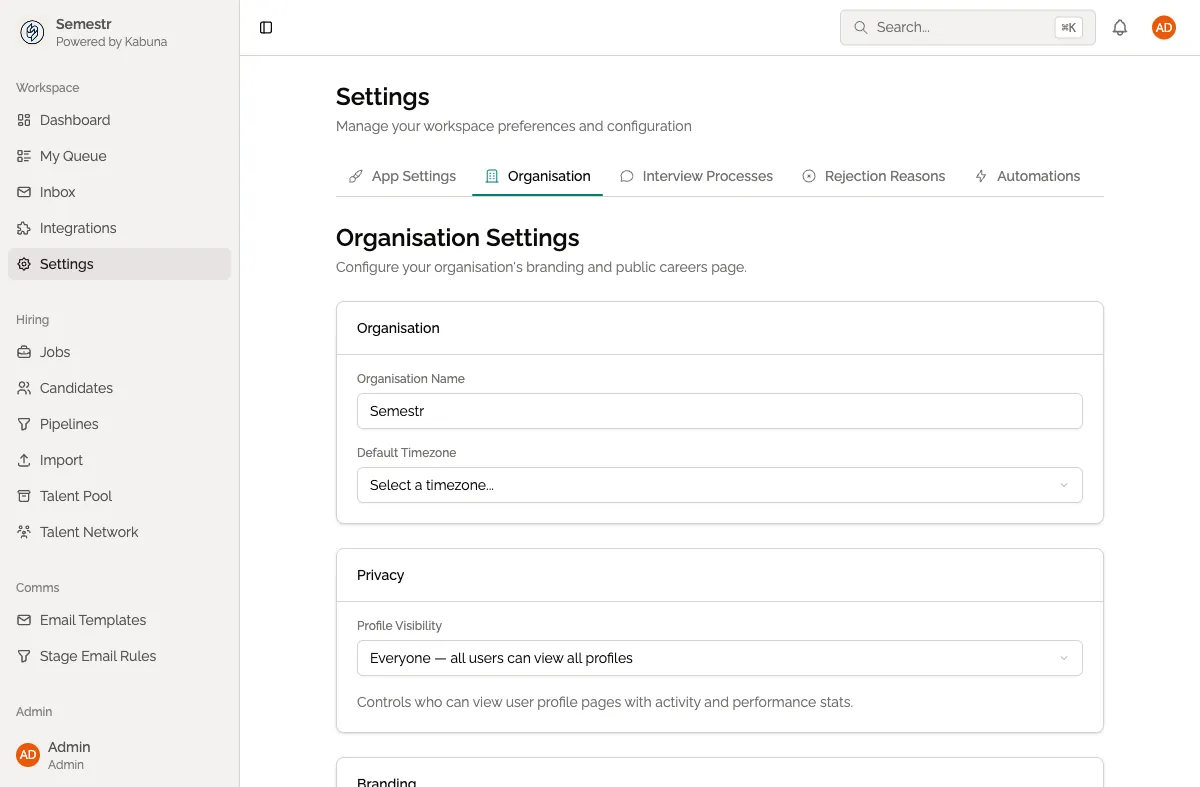
Visibility options
Kabuna offers two modes:
Open (default)
Every team member can see all jobs and all candidates across your organisation. This works well for smaller teams where everyone is involved in hiring.
Restricted
Members can only see jobs they have been added to as a hiring team member. They will only see candidates who belong to those jobs. This is useful for larger teams, or when you have confidential roles that only certain people should access.
How restricted visibility works
- When you set visibility to Restricted, Members will only see jobs where they appear on the hiring team.
- Candidates are visible to a Member only if they are associated with a job that Member can access.
- Admins always have full visibility, regardless of this setting. They can see every job and every candidate at all times.
Changing the visibility setting
- Go to Settings > Organisation.
- In the Visibility section, select Open or Restricted.
- Click Save.
The change takes effect immediately for all Members.
Tips
- If you switch from Open to Restricted, make sure your existing jobs have the right people added to their hiring teams. Otherwise, some Members may lose access to jobs they were previously working on.
- You can add or remove hiring team members on any job at any time from the job’s settings page.
- Use Restricted mode when posting sensitive or executive-level roles that only a few people should know about.
Related
- Managing users and roles — understand the difference between Admin and Member roles.
- Creating a new job — where you add hiring team members to a job.