
Stage email rules
Stage email rules let you automatically send an email whenever a candidate enters a particular pipeline stage. This saves you from manually sending the same emails over and over.
How stage email rules work
When you move a candidate into a stage that has an email rule attached, Kabuna automatically sends the configured email template to the candidate. No extra clicks needed.
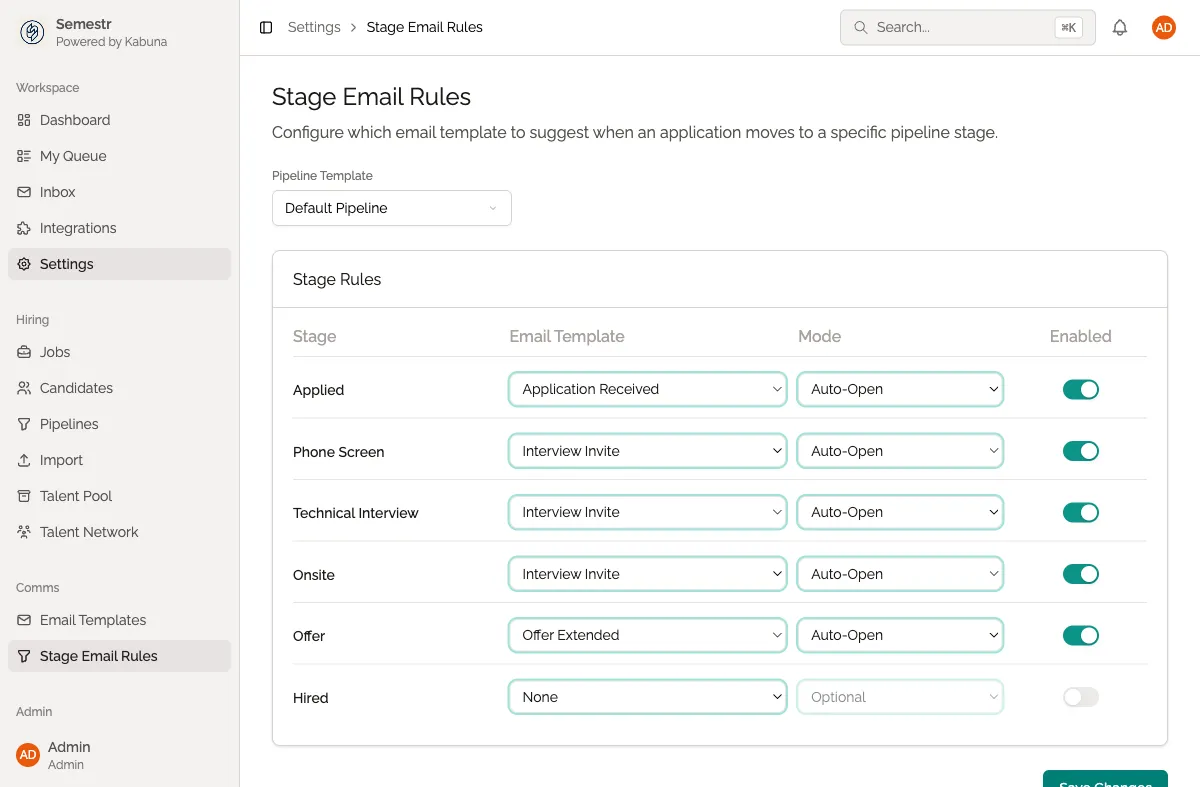
Setting up a stage email rule
- Open the job you want to configure.
- Go to the job’s Settings.
- Find the Stage Email Rules section.
- For the stage you want, click Add Email Rule.
- Select an email template from your saved templates.
- Save the rule.
Now, every time a candidate enters that stage, the selected email template is sent automatically.
Common use cases
- Application received — send a confirmation email as soon as a candidate applies, so they know their application was received.
- Interview stage — send interview preparation details when a candidate moves to the Interview stage.
- Rejection — send a polite rejection email when a candidate is moved to the Rejected stage.
- Offer — send next-step instructions when a candidate reaches the Offer stage.
Tips
- Make sure you have your email templates set up before creating rules. See Setting up email templates.
- You can customise the pipeline stages for each job. See Customising pipeline stages per job for how to tailor stages to different roles.
- Stage email rules work alongside Automations — use automations for more advanced workflows beyond email.