
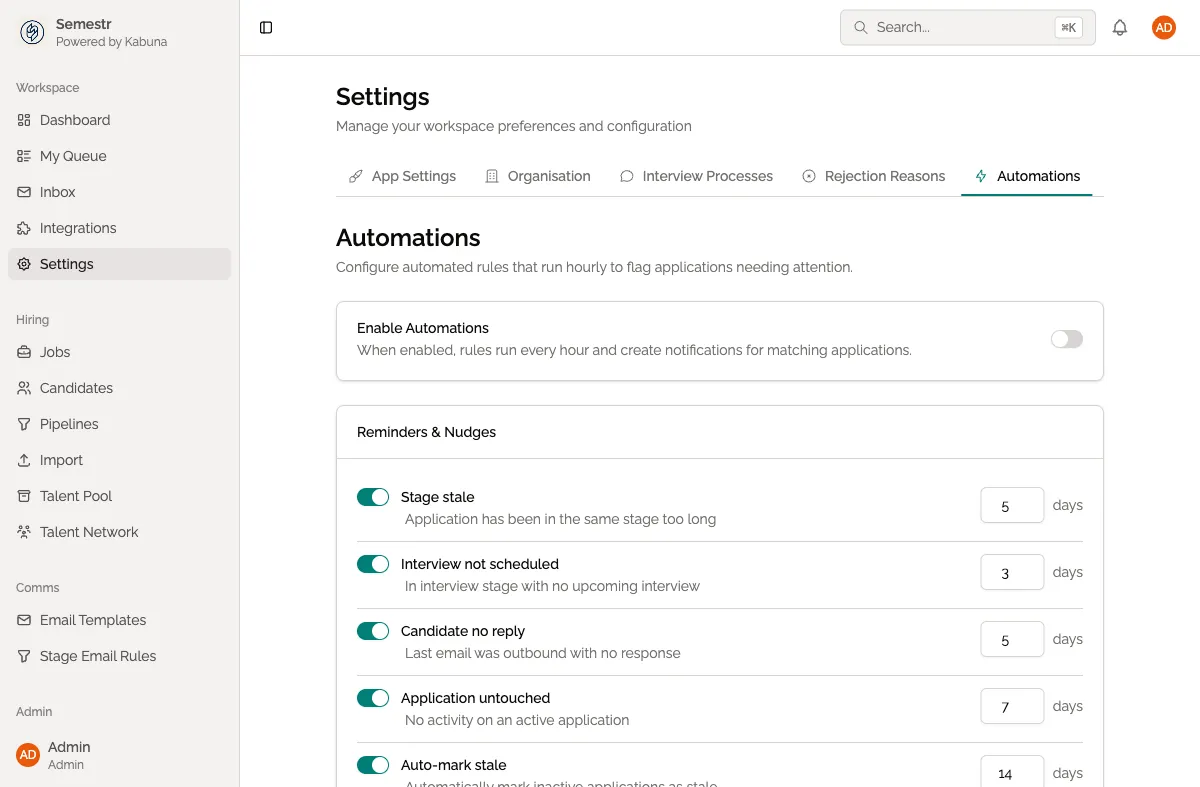
Automations
Automations let you run actions automatically when certain events happen in your hiring pipeline. They reduce manual work and make sure nothing gets missed.
Where to find automations
Go to Settings > Integrations > Automations. This is where you create, edit, and manage all your automation rules.
Creating an automation
- Click New Automation.
- Choose a trigger — the event that starts the automation. For example: candidate added, candidate moved to a stage, feedback submitted.
- Set conditions (optional) — narrow down when the automation should fire. For example: only for a specific job, only when the candidate reaches a certain stage.
- Choose an action — what should happen when the trigger fires. For example: send a Slack notification, assign a candidate owner, send an email.
- Save the automation.
Example automations
- Notify the team on Slack when a new candidate applies to any job.
- Assign a candidate owner automatically when a candidate enters the Phone Screen stage.
- Send a Slack message to the hiring manager when interview feedback is submitted.
Monitoring automations
Automations log their activity so you can see what ran and when. Check the automation’s history to troubleshoot if something does not fire as expected.
Related pages
- Available automation triggers — full list of events you can use as triggers.
- Stage email rules — if you just need to send an email when a candidate enters a stage, stage email rules are a simpler option.