
Archiving and closing jobs
When a role is filled or you’re no longer hiring for it, you can close or archive the job. Both options keep all your candidate data safe.
Close a job
Closing a job removes it from your careers page so candidates can no longer apply. Use this when you’ve filled the role.
- Open the job from the Jobs page.
- Click the menu (three dots) or options button.
- Select Close Job.
- Confirm the action.
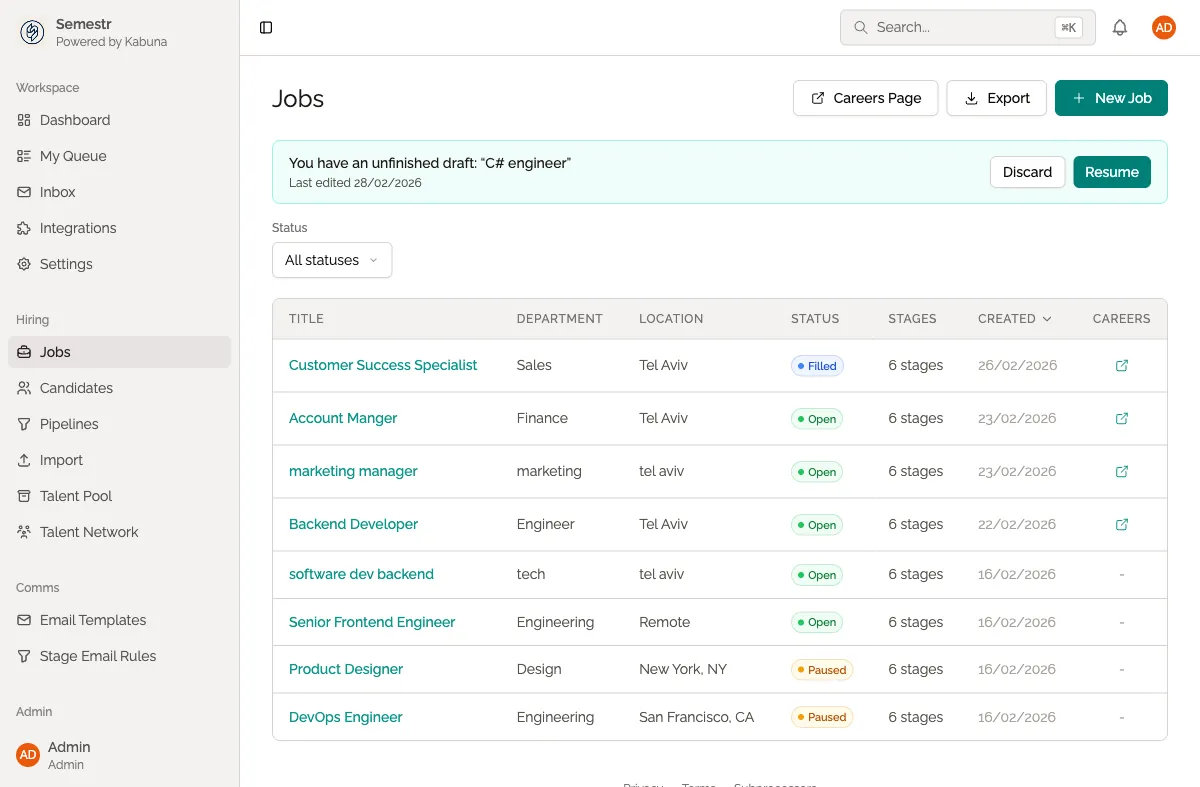
The job moves to the Closed tab on your Jobs page. All candidates, notes, scorecards, and activity history are preserved.
Reopen a closed job
Need to hire for the same role again? You can reopen a closed job instead of creating a new one.
- Go to the Jobs page and switch to the Closed tab.
- Open the job you want to reopen.
- Click the menu and select Reopen Job.
- The job returns to your active list. Publish it to make it visible on your careers page again.
Archive a job
Archiving hides a job from your main Jobs list to keep things tidy. Archived jobs are typically older roles you don’t need to see day-to-day but may want to reference later.
- Open the job from the Jobs page.
- Click the menu and select Archive.
- The job disappears from your main list.
To find archived jobs, use the filter or search on the Jobs page. You can unarchive a job at any time to bring it back to your main list.
Closed vs. archived — what’s the difference?
| Closed | Archived | |
|---|---|---|
| Visible on careers page | No | No |
| Visible in main Jobs list | Yes (Closed tab) | No (search/filter only) |
| Candidate data preserved | Yes | Yes |
| Can be reopened | Yes | Yes (unarchive first) |
Use Close when you’ve finished hiring. Use Archive when you want to declutter your Jobs list.
What’s next
- Create a new job for your next opening.
- Learn how jobs appear on your careers page.