
Creating a new job
Every hire starts with a job. Here’s how to create one in Kabuna.
Create a job
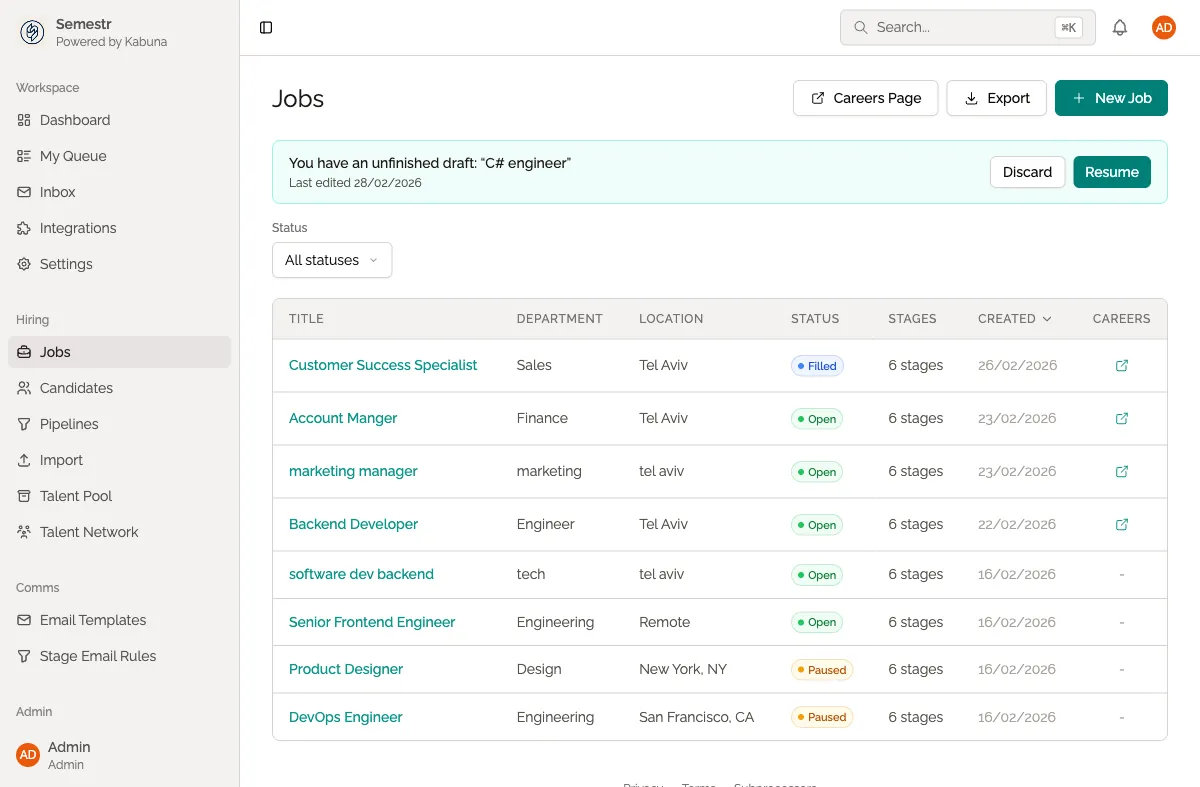
- Go to the Jobs page from the sidebar.
- Click New Job in the top-right corner.
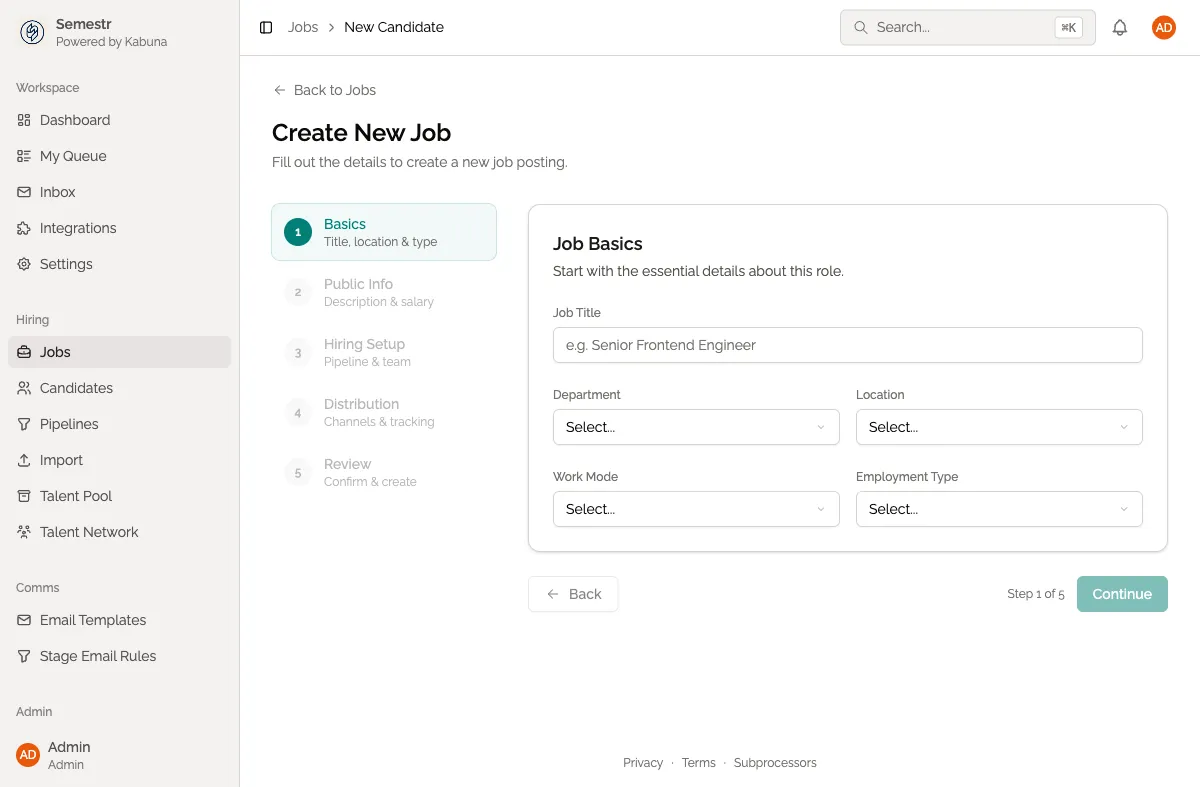
- Fill in the job details:
- Title — the role name candidates will see (e.g. “Senior Backend Engineer”).
- Department — pick from your existing departments or type a new one.
- Location — office location, remote, or hybrid.
- Employment type — full-time, part-time, or contract.
- Description — use the rich text editor to write the role summary, responsibilities, and requirements. You can format text, add lists, and include links.
- Choose a pipeline template. This sets the hiring stages candidates will move through. You can customise stages for this specific job later.
- Optionally, mark the job as Confidential. Confidential jobs are only visible to team members you explicitly grant access to — they won’t appear on your careers page.
- Click Save as Draft or Publish.
Draft vs. published
- Draft jobs are only visible inside Kabuna. Use drafts when you’re still writing the description or waiting for approval.
- Published jobs go live on your careers page immediately. Candidates can view and apply to them.
You can switch a job between draft and published at any time from the job detail page.
What’s next
- Set up pipeline templates to define reusable hiring workflows.
- Customise pipeline stages for a specific job.
- Learn how your published jobs appear on your careers page.