
Customising pipeline stages per job
Sometimes a job needs a slightly different process than your standard pipeline template. Kabuna lets you customise the stages for any individual job without affecting the template or other jobs.
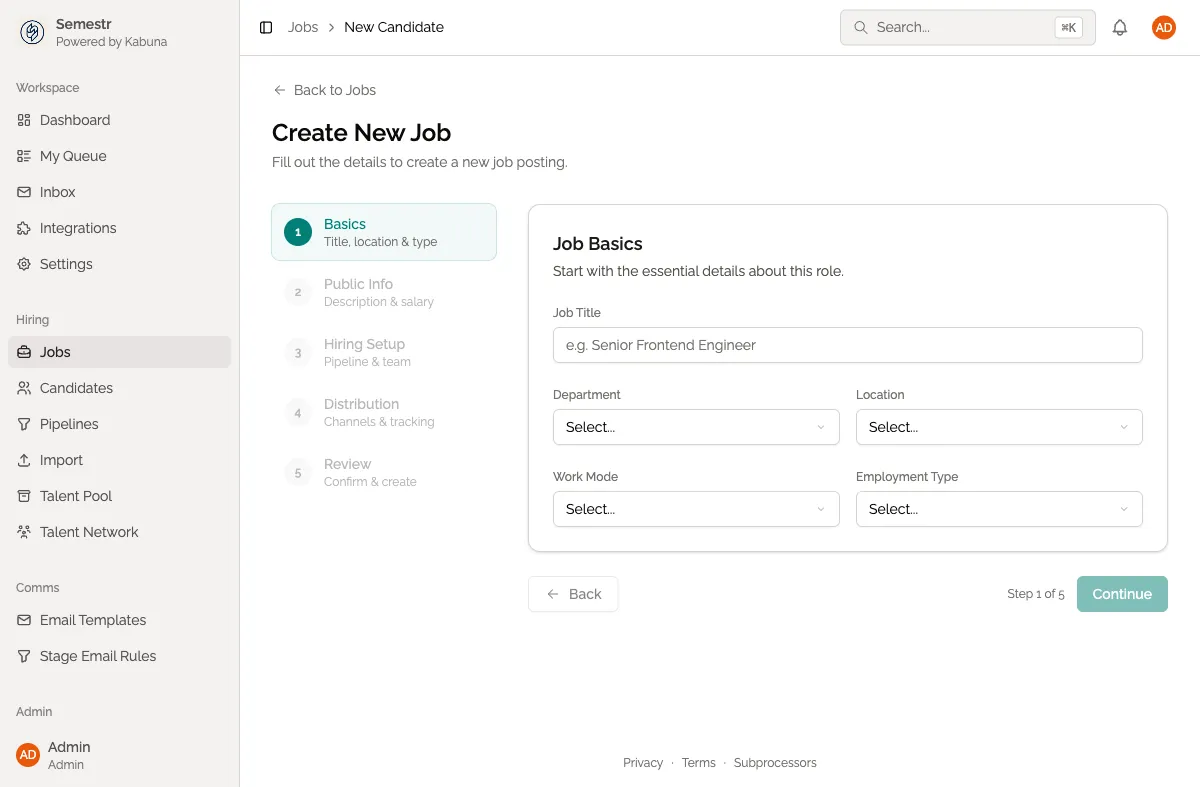
Customise stages when creating a job
- Create a new job and choose a pipeline template.
- After selecting the template, you’ll see the list of stages it includes.
- Make your changes:
- Add a stage — click the add button and type a name (e.g. “Take-home Test”).
- Remove a stage — click the delete icon next to a stage you don’t need.
- Rename a stage — click on the stage name and edit it.
- Reorder stages — drag stages up or down to change the order.
- Save the job. Your customised stages apply only to this job.
Customise stages on an existing job
- Open the job from the Jobs page.
- Go to the job’s settings or edit view.
- Find the Pipeline Stages section.
- Add, remove, rename, or reorder stages as needed.
- Save your changes.
What happens to existing candidates
When you change stages on a job that already has candidates:
- Candidates stay in their current stage. Nothing moves automatically.
- If you remove a stage that has candidates in it, you’ll be asked to move those candidates to a different stage first.
- Adding new stages doesn’t affect candidates already in the pipeline — they stay where they are.
Good to know
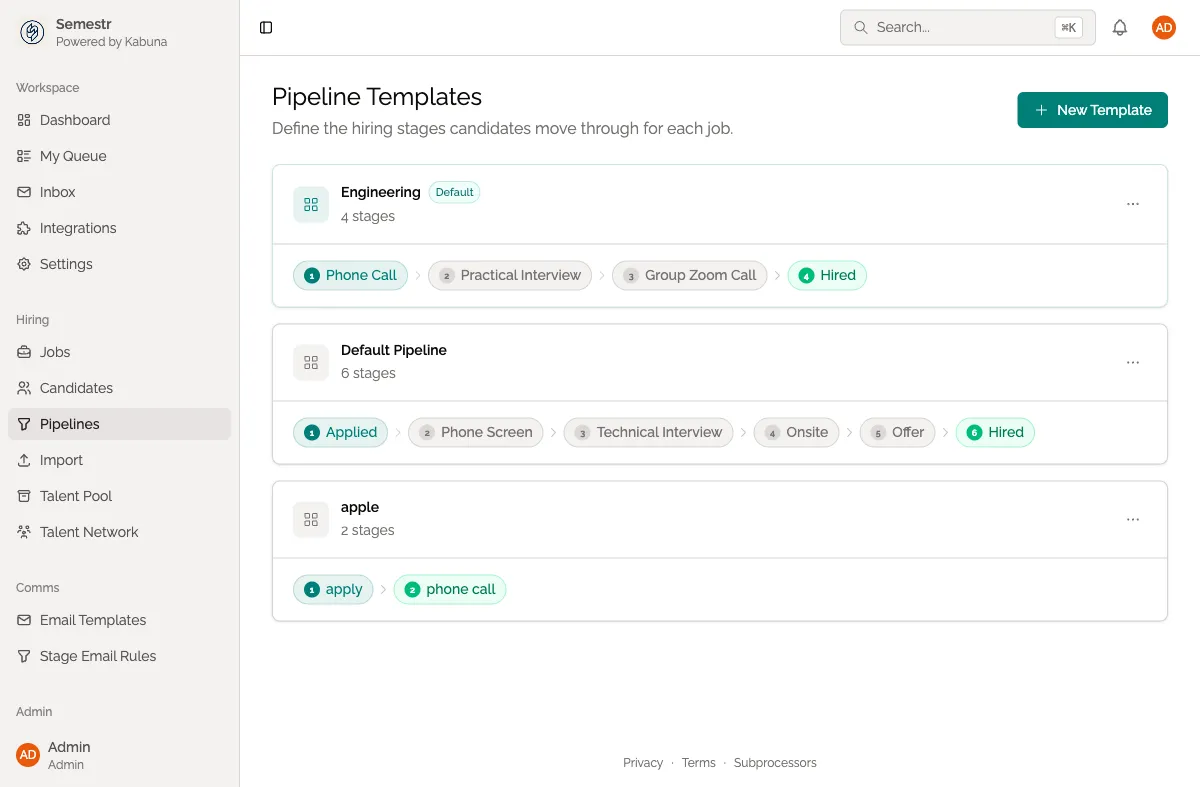
- Per-job changes never affect the original pipeline template. The template stays as-is for other jobs.
- If you want to change the default stages for all future jobs, edit the template in Settings > Pipelines instead.