
Connecting your Google mailbox
When you connect your Google mailbox, emails you send to candidates from Kabuna come from your own address. Replies are synced back automatically, so the whole conversation stays in one place.
Each team member connects their own mailbox. This means candidates always see a real person’s name and email, not a generic address.
How to connect
- Go to Settings > Integrations > Email.
- Click Connect Google.
- Sign in with your Google account (Gmail or Google Workspace).
- Grant the requested permissions so Kabuna can send and read emails on your behalf.
- You’ll see a confirmation once the connection is active.
What happens after you connect
- When you send an email from Kabuna, it goes out from your Google address.
- When a candidate replies, the reply is synced back into Kabuna and appears on their profile.
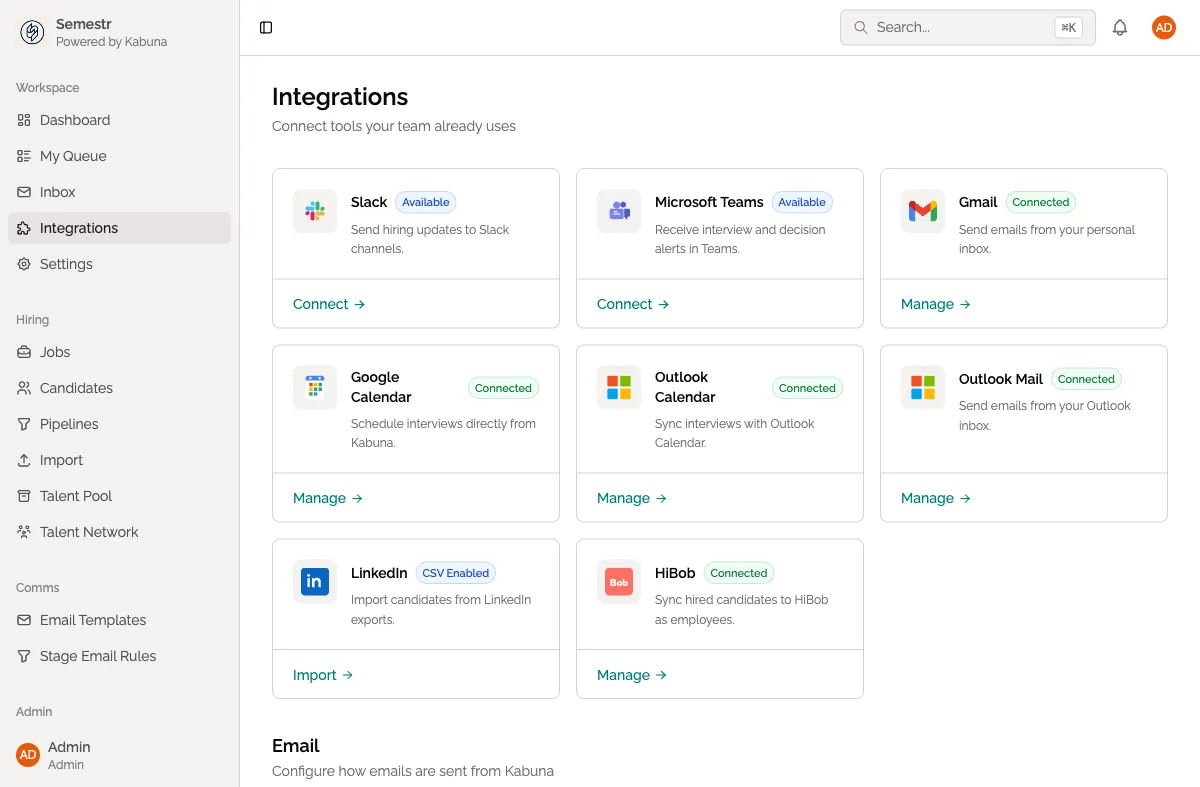
- Your connected status is shown on the Settings > Integrations > Email page.
Disconnecting your mailbox
- Go to Settings > Integrations > Email.
- Click Disconnect next to your connected account.
- Confirm the disconnection.
After disconnecting, any new emails you send from Kabuna will use the shared mailbox instead.
Things to know
- Each person on your team connects their own mailbox individually. There is no org-wide Google connection for sending.
- If you haven’t connected a personal mailbox, Kabuna uses the shared mailbox as the default sender.
- Connecting your mailbox does not give Kabuna access to your entire inbox. It only syncs messages related to candidates in your Kabuna account.
Related pages
- Using the shared mailbox — the alternative if you don’t connect a personal mailbox
- Sending emails to candidates
- How email threads are logged