
Sending emails to candidates
You can email candidates directly from Kabuna. Every email you send is logged on the candidate’s profile, so your whole team can see the conversation history.
Sending an email
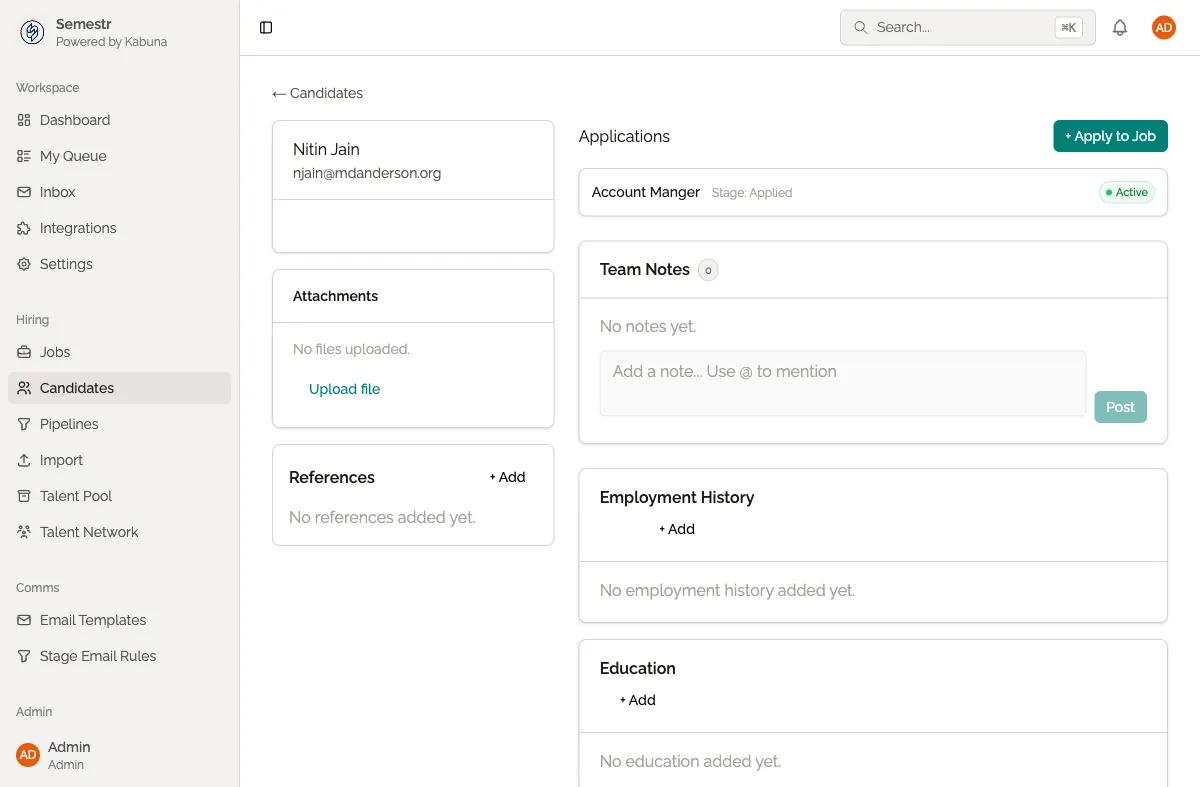
- Open a candidate’s profile.
- Click the Email tab, or click the Send Email button.
- Choose a template from the dropdown, or write your message from scratch.
- Edit the subject line and body if needed.
- Add any attachments by clicking Attach File.
- Click Send.
Which address sends the email
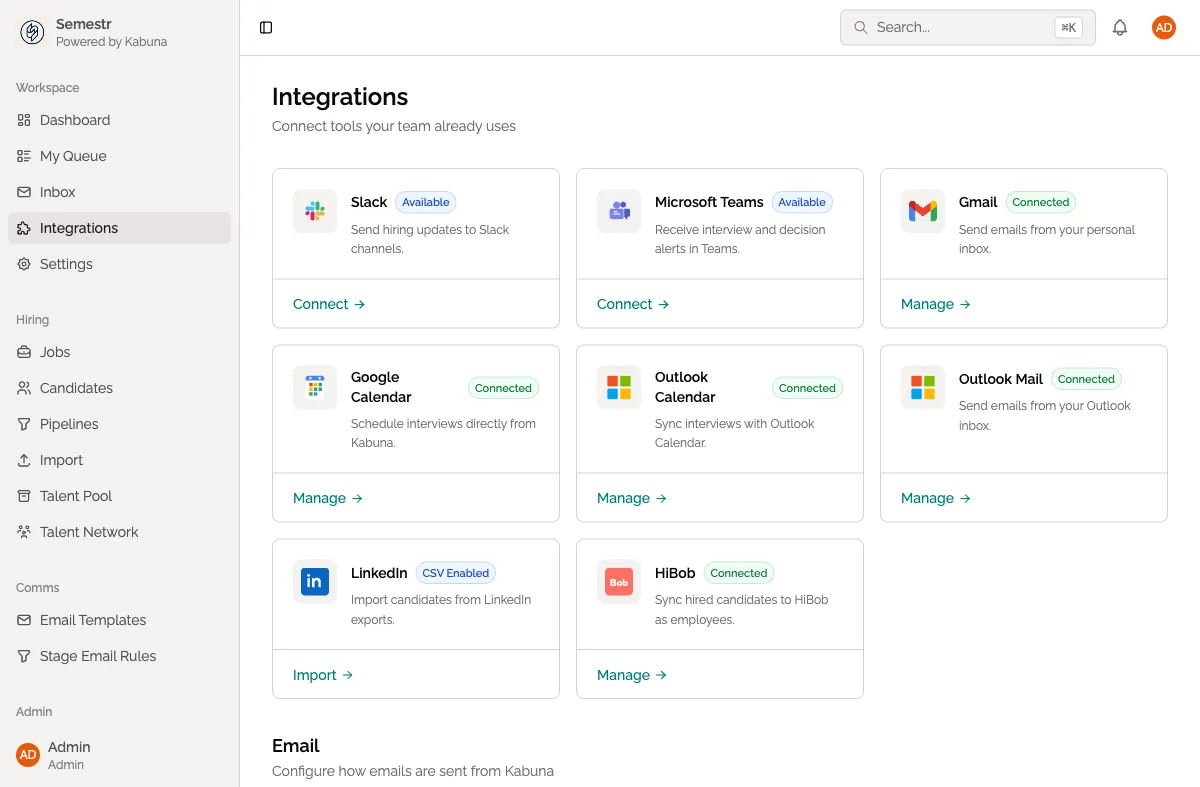
- If you’ve connected your Google mailbox, the email goes out from your personal Google address.
- If you haven’t connected a personal mailbox, it goes out from the shared mailbox (e.g.
hiring@{slug}.kabuna.io).
You can check which address is active by looking at the “From” field in the compose view.
Adding attachments
Click Attach File in the compose view to upload a file. Common attachments include offer letters, job descriptions, or interview prep documents.
After you send
- The email appears immediately in the candidate’s activity feed.
- If the candidate replies, the reply is matched to the thread and shows up in the same feed. See How email threads are logged for details.
Tips
- Use email templates for messages you send often. You can still edit the template content before sending.
- You can email candidates at any stage of the hiring process.
- All emails are visible to other team members on the candidate’s profile, so everyone stays in the loop.
Related pages
- Setting up email templates — create reusable messages
- How email threads are logged — how replies and threads are tracked
- Connecting your Google mailbox — send from your own address
- Using the shared mailbox — the default sender