
Triaging candidates quickly
When you have a lot of applicants, clicking through each card one by one takes time. Kabuna’s pipeline board lets you switch to a compact list view, select multiple candidates at once, and reject in bulk — all from the keyboard if you prefer.
Switching between Kanban and List view
At the top-right of the pipeline board, next to Add Candidate, you’ll see two small view buttons:
- The grid icon shows the standard Kanban columns.
- The list icon switches to a stacked list, with each stage as a collapsible section.
Your choice is saved automatically, so the board reopens in whichever view you last used.
In list view, each stage has a header you can click to collapse or expand it. This is handy when you want to focus on one stage without scrolling past others.
Selecting candidates
You can select one or more candidates in either view.
Single click — selects just that candidate (any previous selection is cleared).
⌘ Cmd + click (Mac) or Ctrl + click (Windows) — adds or removes a candidate from your selection without clearing the others.
Shift + click — selects every candidate between the one you clicked and the last one you selected, like selecting a range of files in Finder or Explorer.
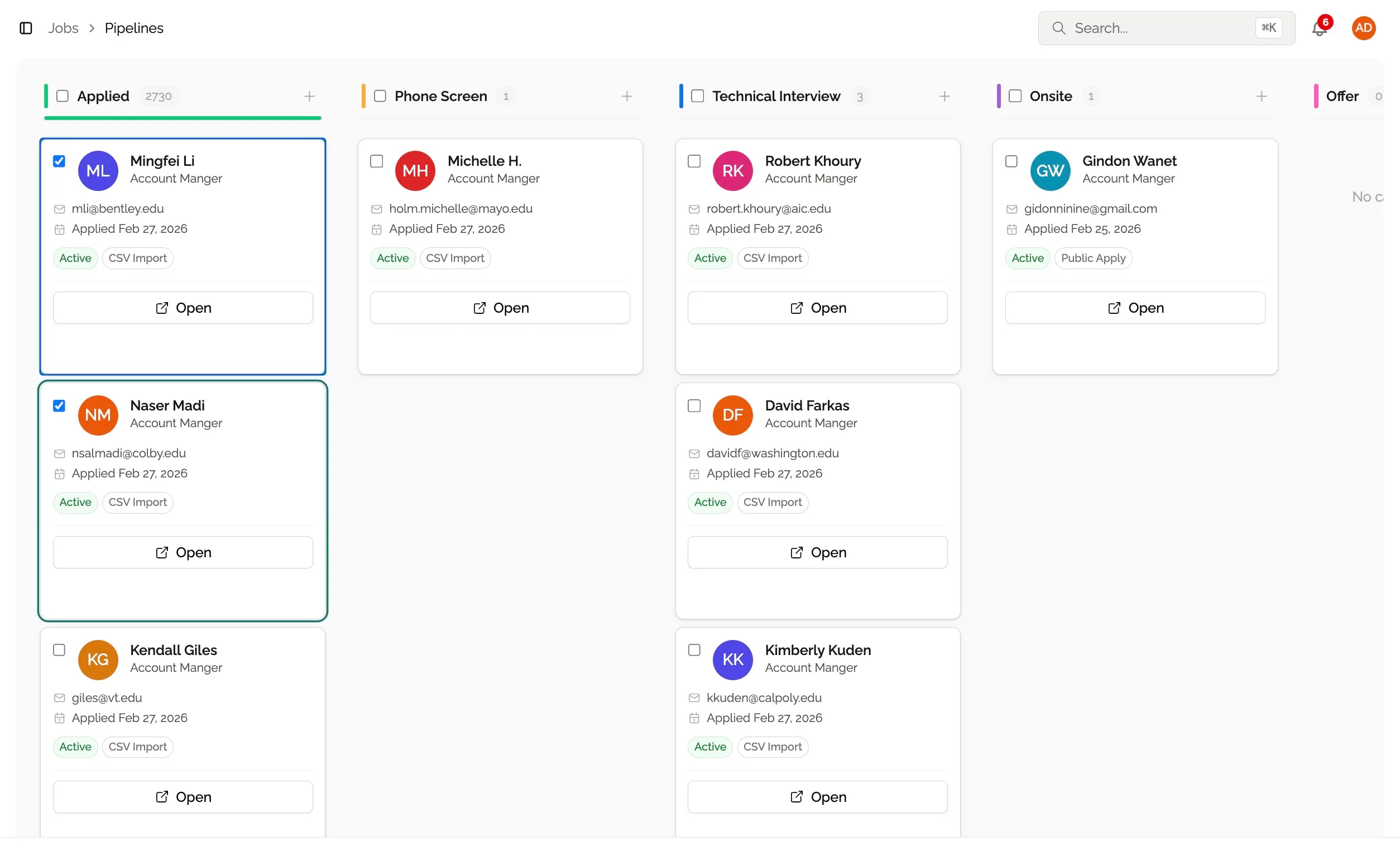
When two or more candidates are selected, a count appears above the board and the Bulk Actions bar appears at the bottom of the screen with options to move or reject them all at once.
To clear your selection, click on any empty area of the board, or press Escape.
Keyboard navigation
Once you’ve selected a candidate (or just want to browse), you can navigate the whole pipeline without a mouse.
| Key | What it does |
|---|---|
| ↑ / ↓ | Move to the previous or next candidate. Works in both Kanban and List view. |
| ← / → | Kanban only — jump to the same row in the column to the left or right. |
| Shift + ↑ / ↓ | Extend your selection up or down from where you started. |
| ⌘ Cmd + A / Ctrl + A | Select every candidate currently shown on the board. |
| Escape | Clear the selection entirely. |
Rejecting candidates in bulk
With one or more candidates selected:
Backspace — opens a confirmation before rejecting, so you can double-check before anything changes.
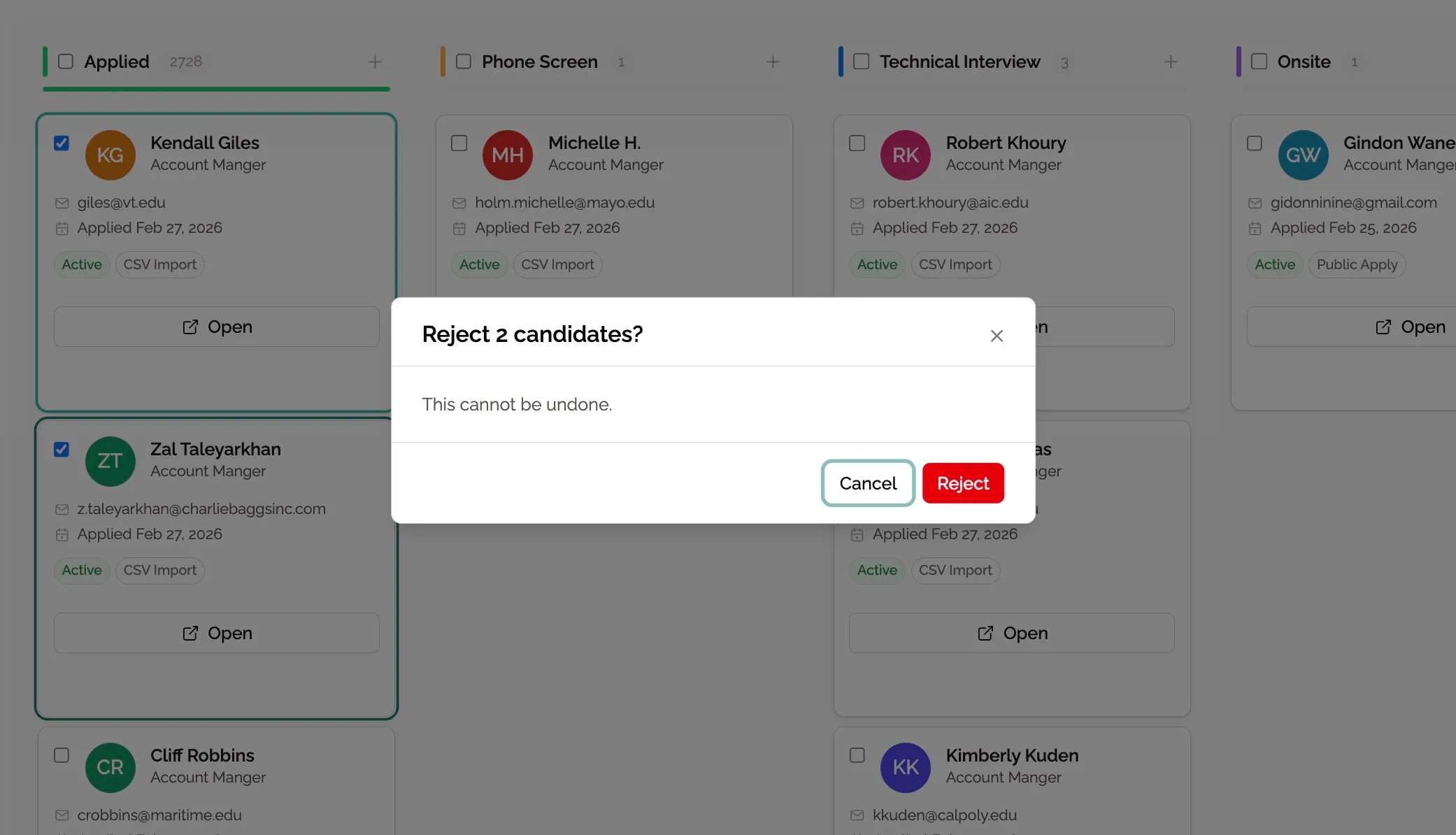
⌘ Cmd + Backspace (Mac) / Ctrl + Backspace (Windows) — rejects immediately, no confirmation. Use this when you’re confident and want to move fast.
Rejected candidates are removed from the pipeline and appear in the Rejected tab on the job page, where you can review them at any time.
Putting it all together
A typical fast-triage session looks like this:
- Open a job and switch to List view.
- Press ↓ to move through candidates one by one.
- Hold Shift and press ↓ to extend the selection to a few more.
- Press Backspace to reject the group (or ⌘ Cmd + Backspace to skip the confirmation).
- Press Escape to clear and start the next group.
What’s next
- Rejecting a candidate — rejecting individually with a reason.
- Revisiting rejected candidates — how to undo a rejection.
- Moving a candidate through the pipeline — using drag-and-drop or the move button.